

Troubleshoot a failed import
What to check, in order, when an import returns less than you expected.
An import that has stopped short, or shows Pause, almost always has a reason you can see. Work through these in order.
1. Check why it paused
Hover over the Pause status and it will tell you. The usual causes:
- You have reached the daily quota — 80 leads a day on standard LinkedIn, 2,500 with Sales Navigator. It resumes on its own tomorrow.
- You have reached the limit on your plan. Trial accounts have a cap on total imports, and some plans do not include importing at all.
- You paused it yourself. Easily done and easily forgotten.
If none of those apply, keep going.
2. Check your LinkedIn session
Imports run through your own LinkedIn session, so you have to still be signed in to LinkedIn in another tab. If you have signed out — or LinkedIn has signed you out — sign back in and restart the import.
3. Check you can actually see those profiles
On a free LinkedIn account you can only view profiles within your 1st, 2nd and 3rd-degree network. Anyone outside it cannot be imported, no matter what the search returned. A search that returns a lot of distant profiles will import far fewer leads than it promised.
4. Collect the details for support
If it still will not run, support will need to see what LinkedIn is returning.
Open the extension's console
- Go to
chrome://extensions. - Turn on Developer mode.
- Find LinkedLeads and click Service worker.
Capture the LinkedIn responses
-
Go to the Network tab.
-
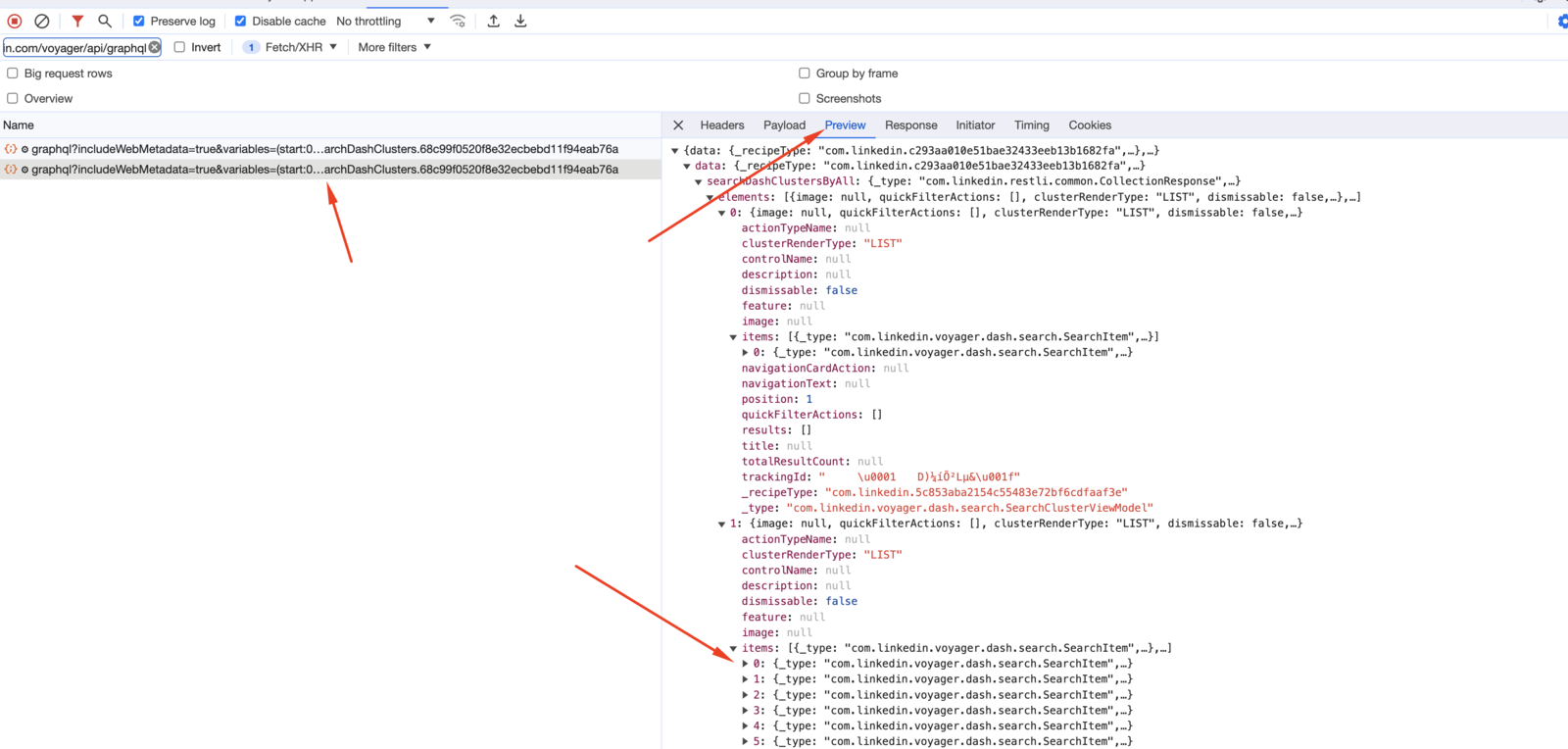
In the filter bar, enter:
https://www.linkedin.com/voyager/api/graphql -
Click a request, view its response, and screenshot it.
-
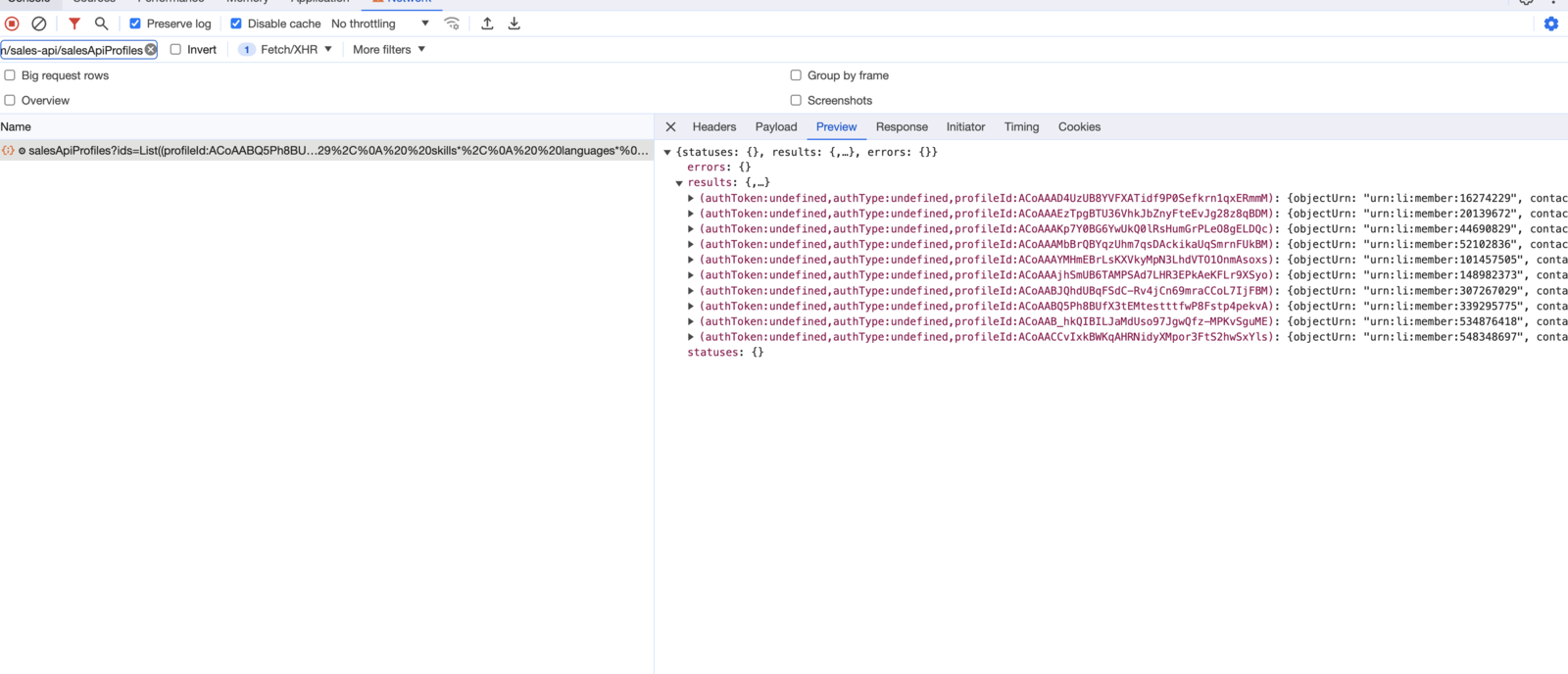
Repeat with:
https://www.linkedin.com/sales-api/salesApiProfiles -
Screenshot that response too.
Send them in
Email the screenshots to [email protected]. Those two responses are usually enough to identify the problem straight away.