

Add members to a pipeline
Share a board with colleagues and decide what they can change.
There are four places you can put someone on a board, so you can do it from wherever you happen to be when you decide to.
From the pipeline
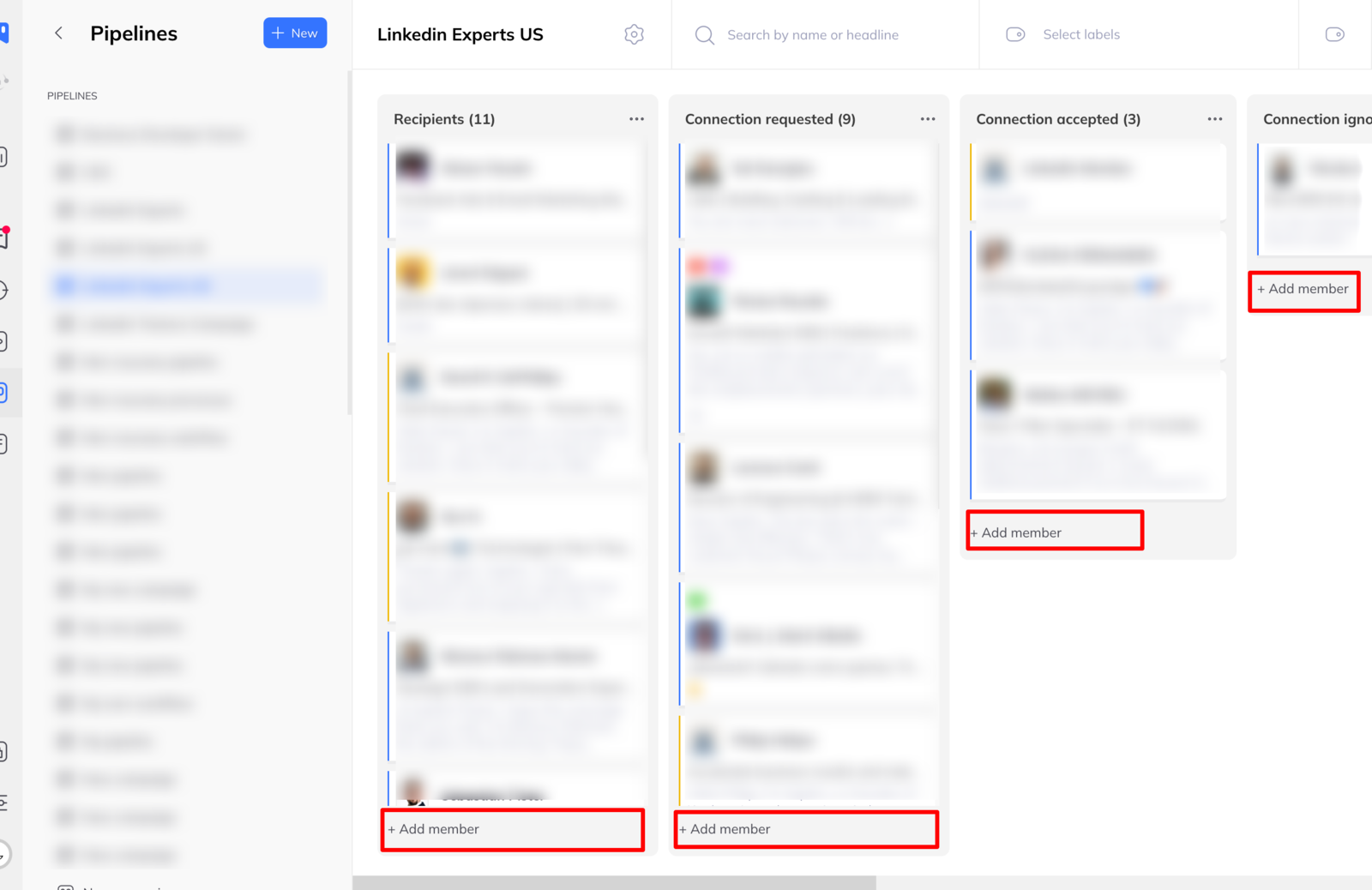
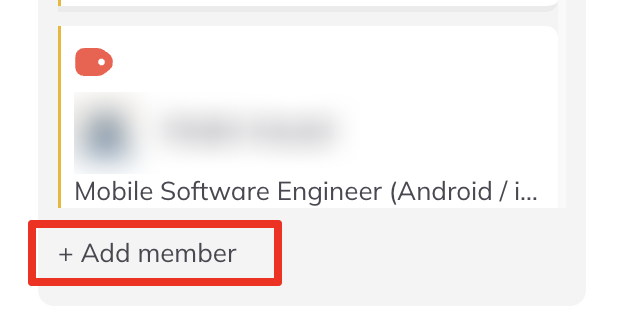
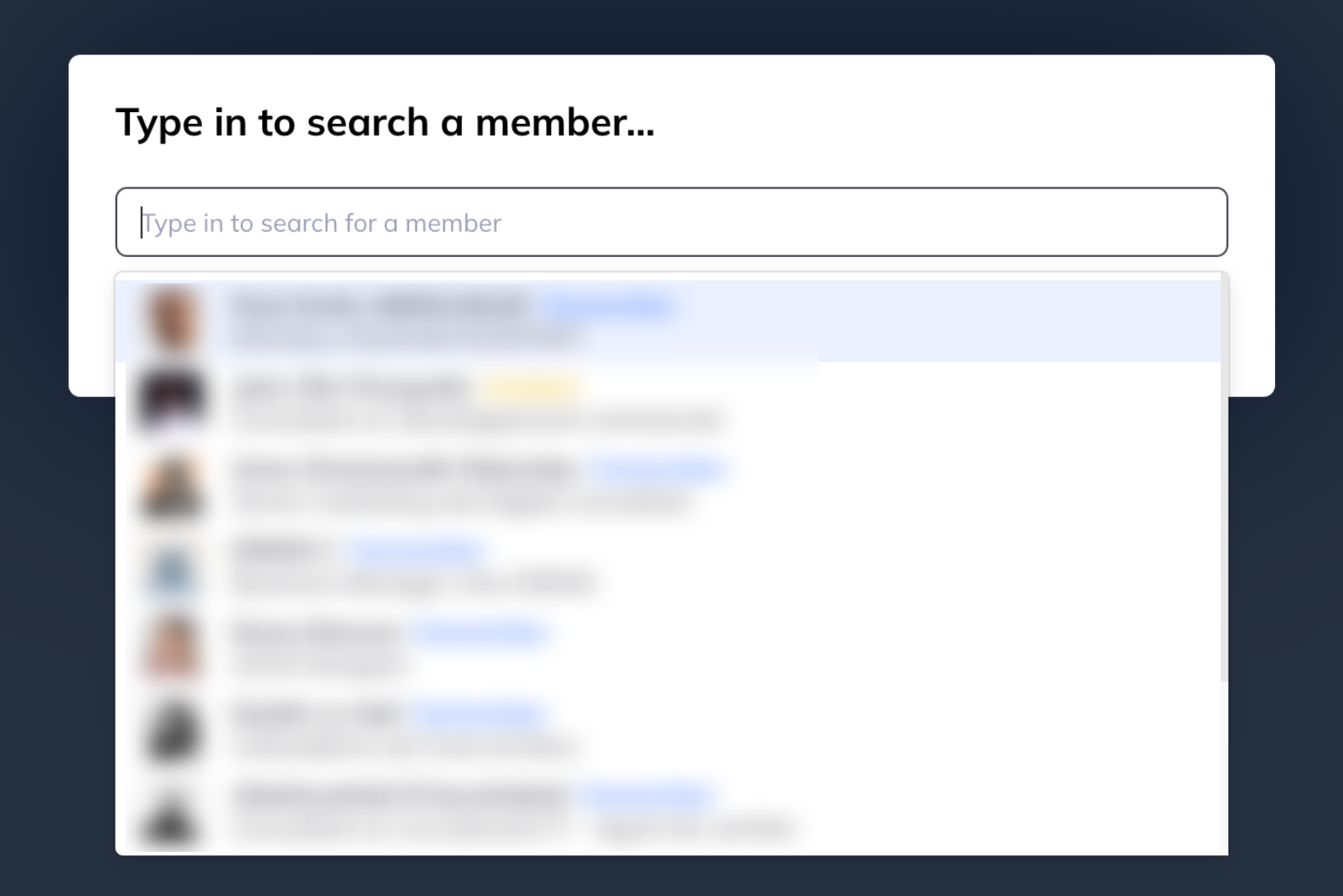
Each column has an + Add members button at the bottom. Click it, choose the members in the window that opens, confirm. They appear in that column immediately.
From a lead list
- Select one or more leads in the list.
- Click Add to pipeline in the top bar.
- Choose the pipeline and the target column.
- Click Add.
This is the usual route after an import: filter the list down, select what is left, put it on a board.
From the inbox
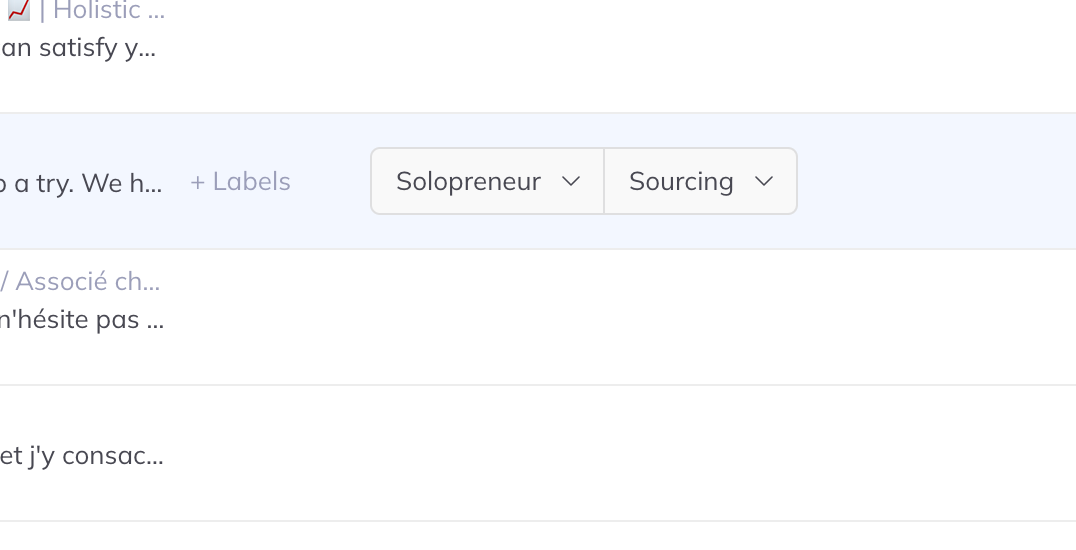
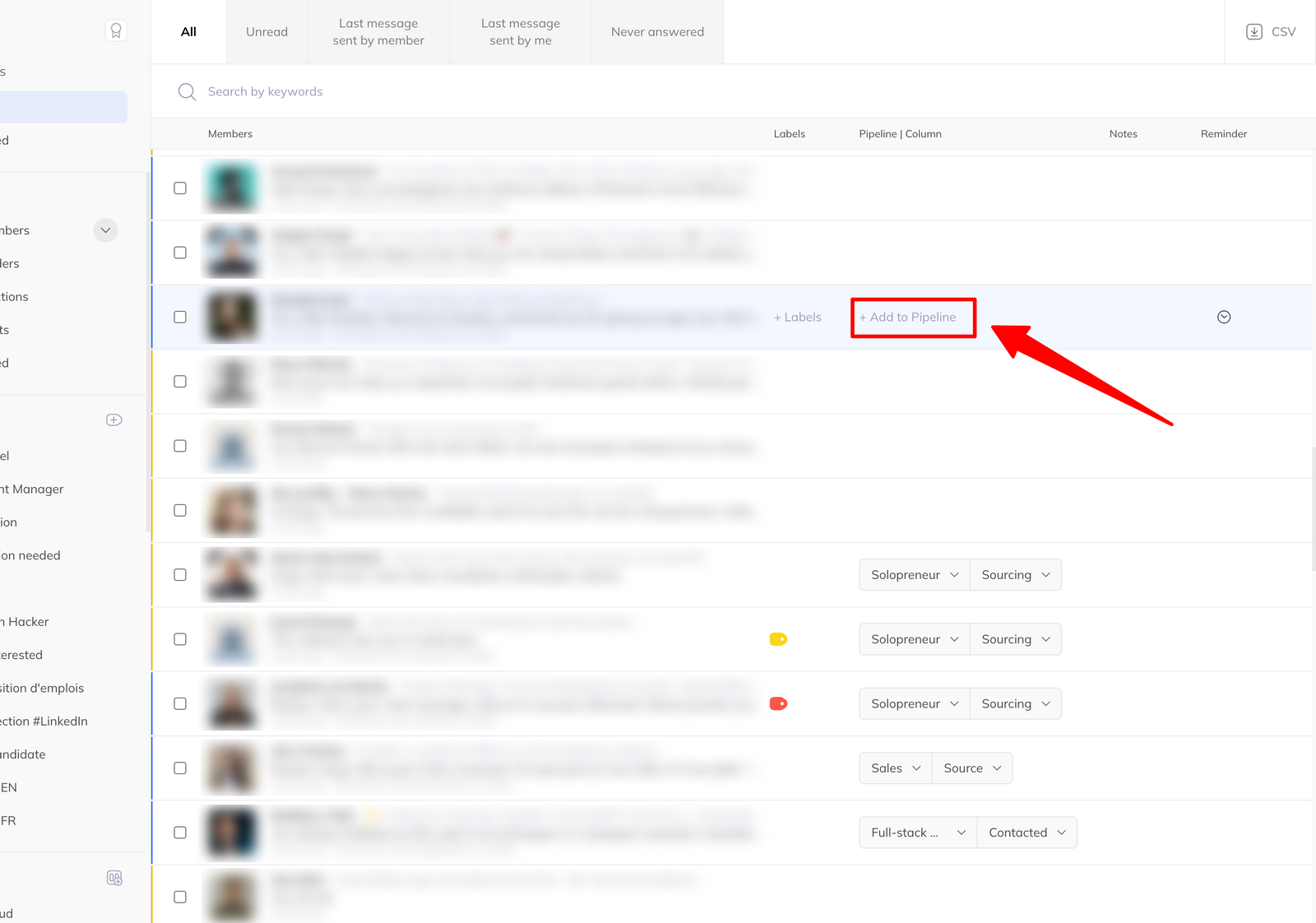
On hover. Hover over someone's row, click Add to pipeline among the quick actions, choose pipeline and column. Done without opening anything.
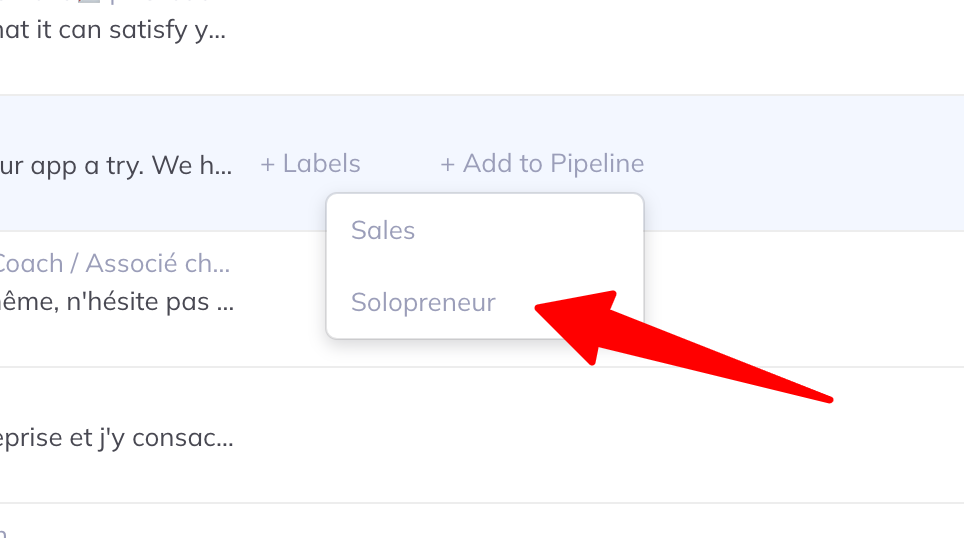
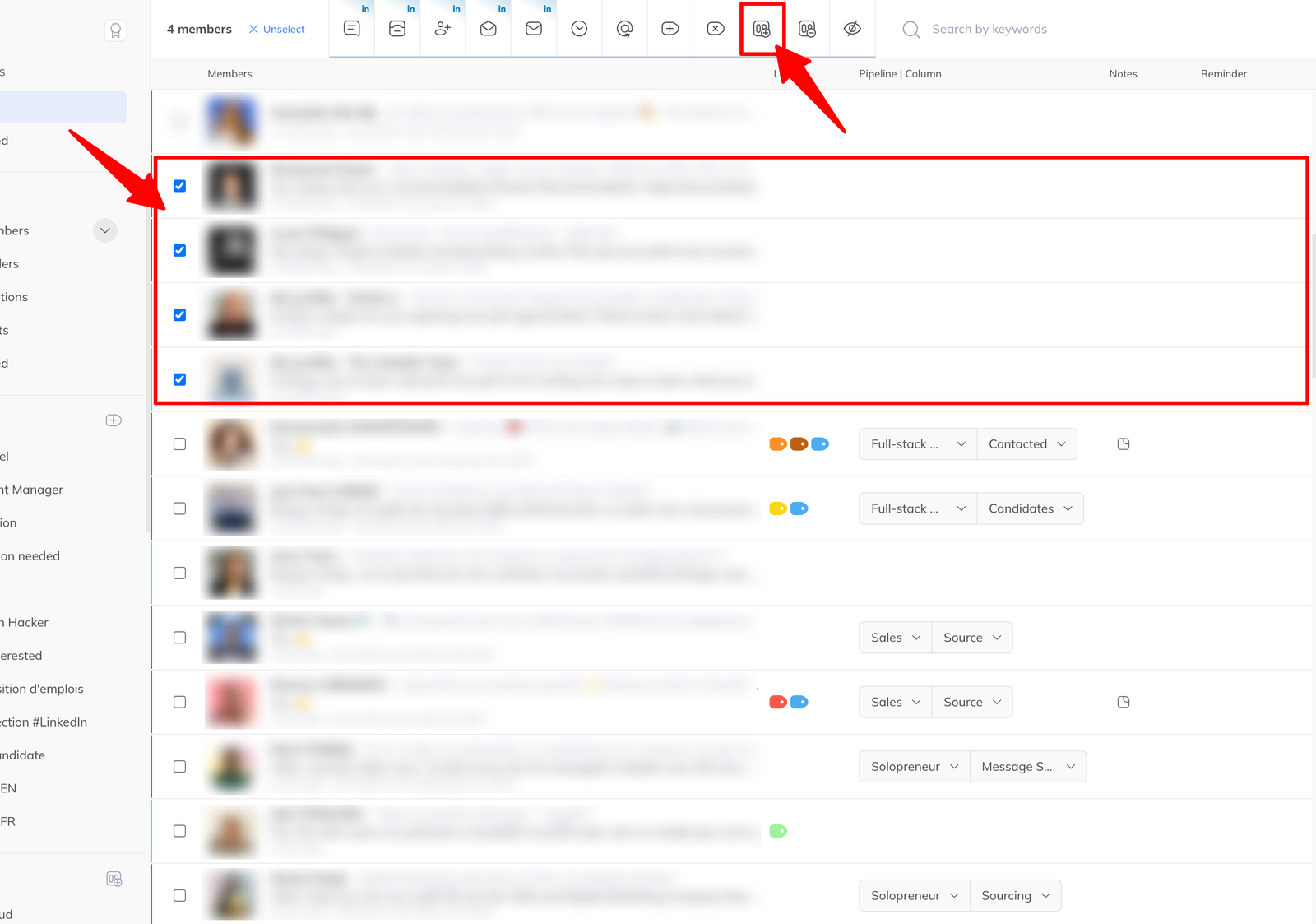
In bulk. Tick several people, click Add to pipeline in the batch action menu, choose pipeline and column, click Add. See run batch actions in the inbox.
From a conversation
With a chat open, find the Pipeline section in the right-hand panel and click Add to pipeline, then choose the pipeline and column.
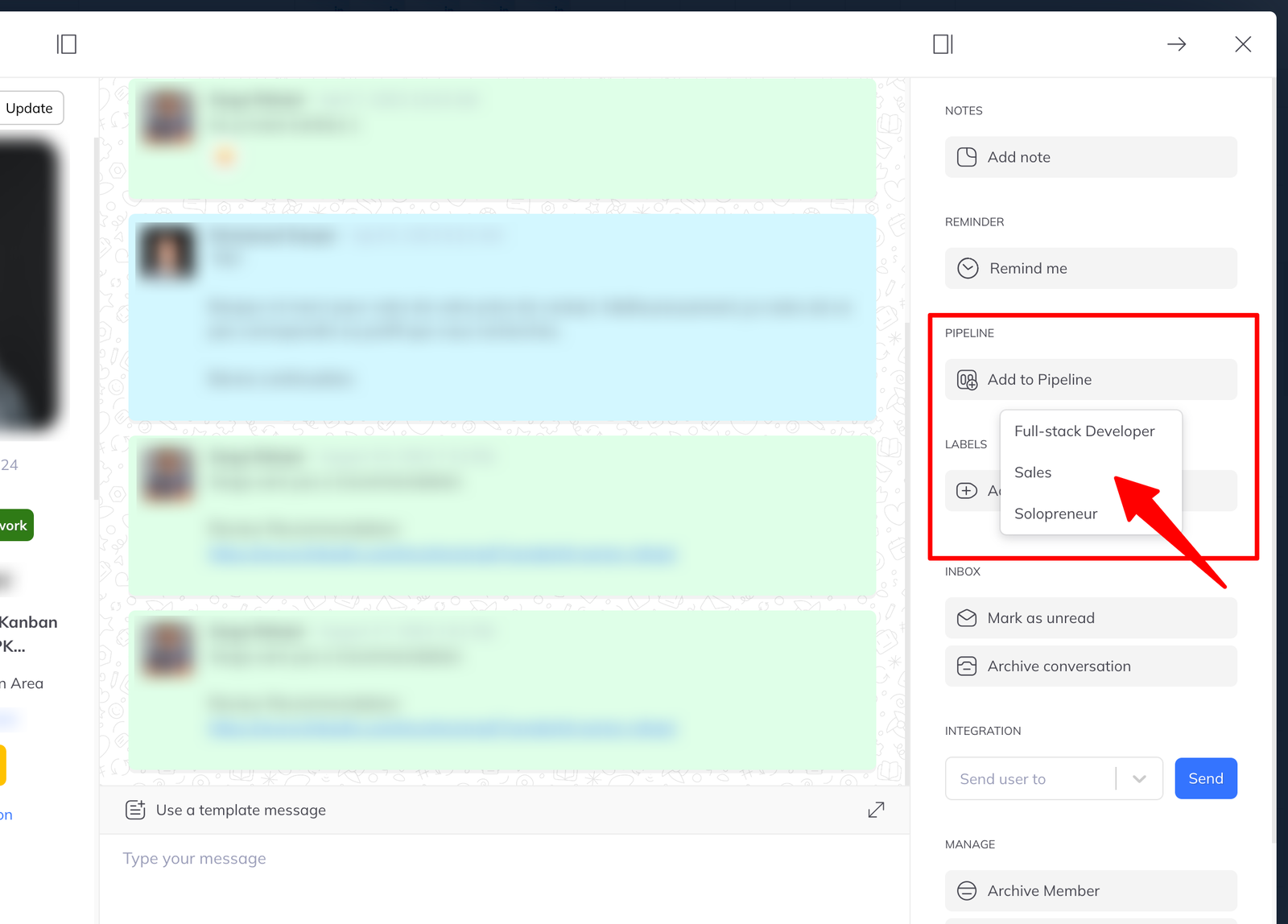
This is the one to use mid-conversation — someone says something that changes where they belong, and you move them without leaving the reply.