
Create a pipeline
Set up a board and its first columns.
From the Pipelines page, click + New in the top-left corner. The menu offers a blank pipeline, either of two predefined templates, or a team template if your team has published one.
Blank
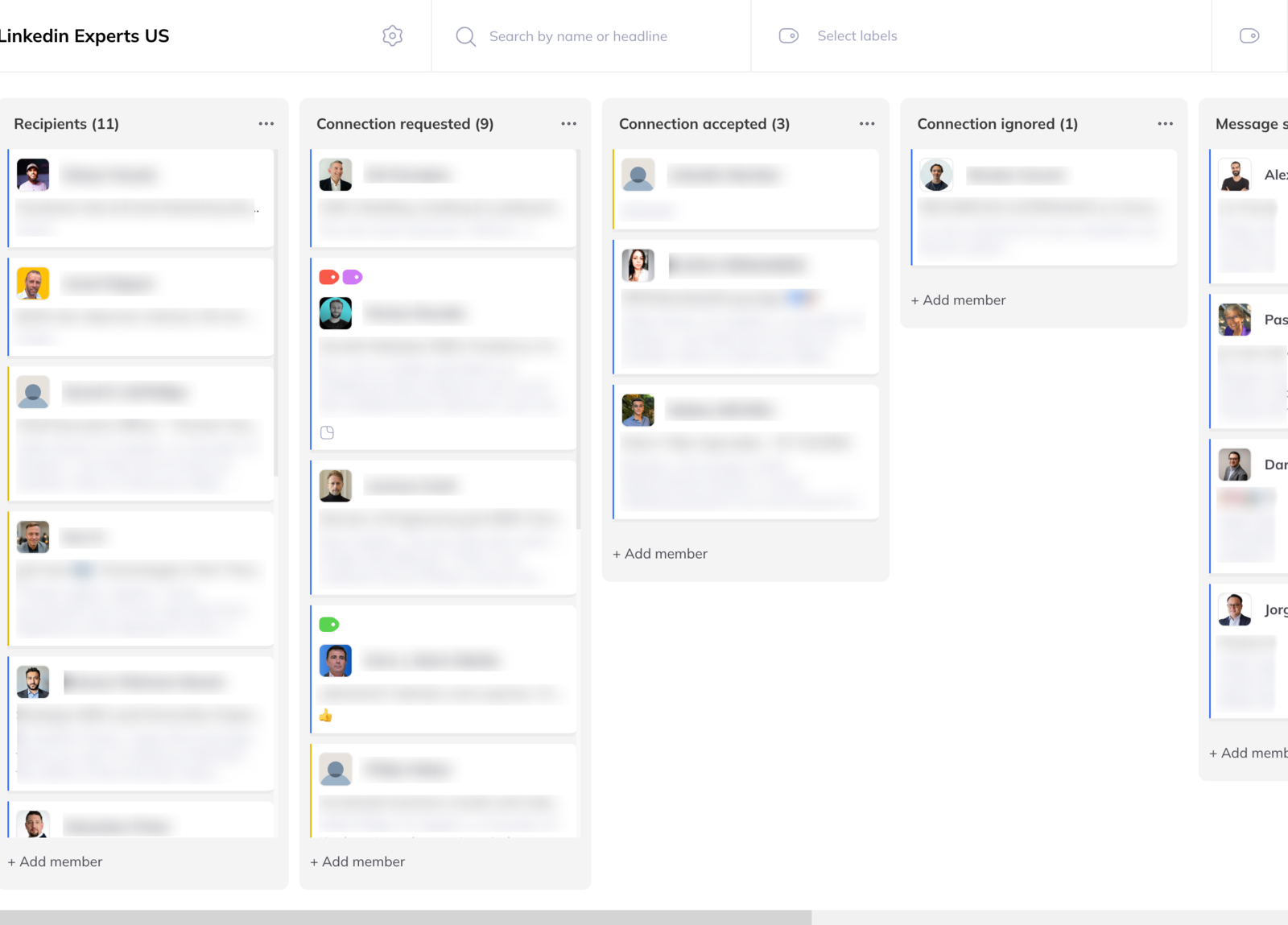
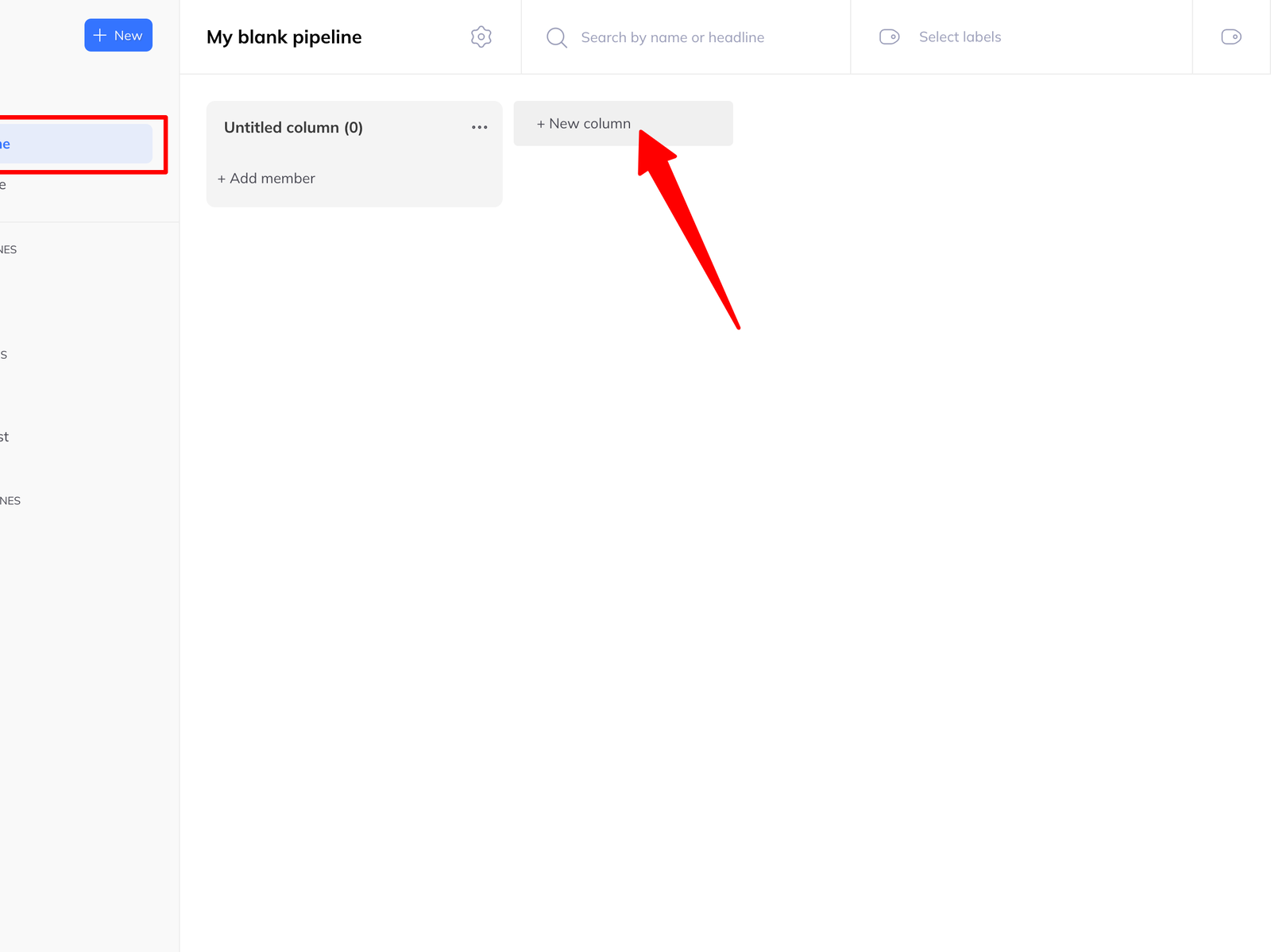
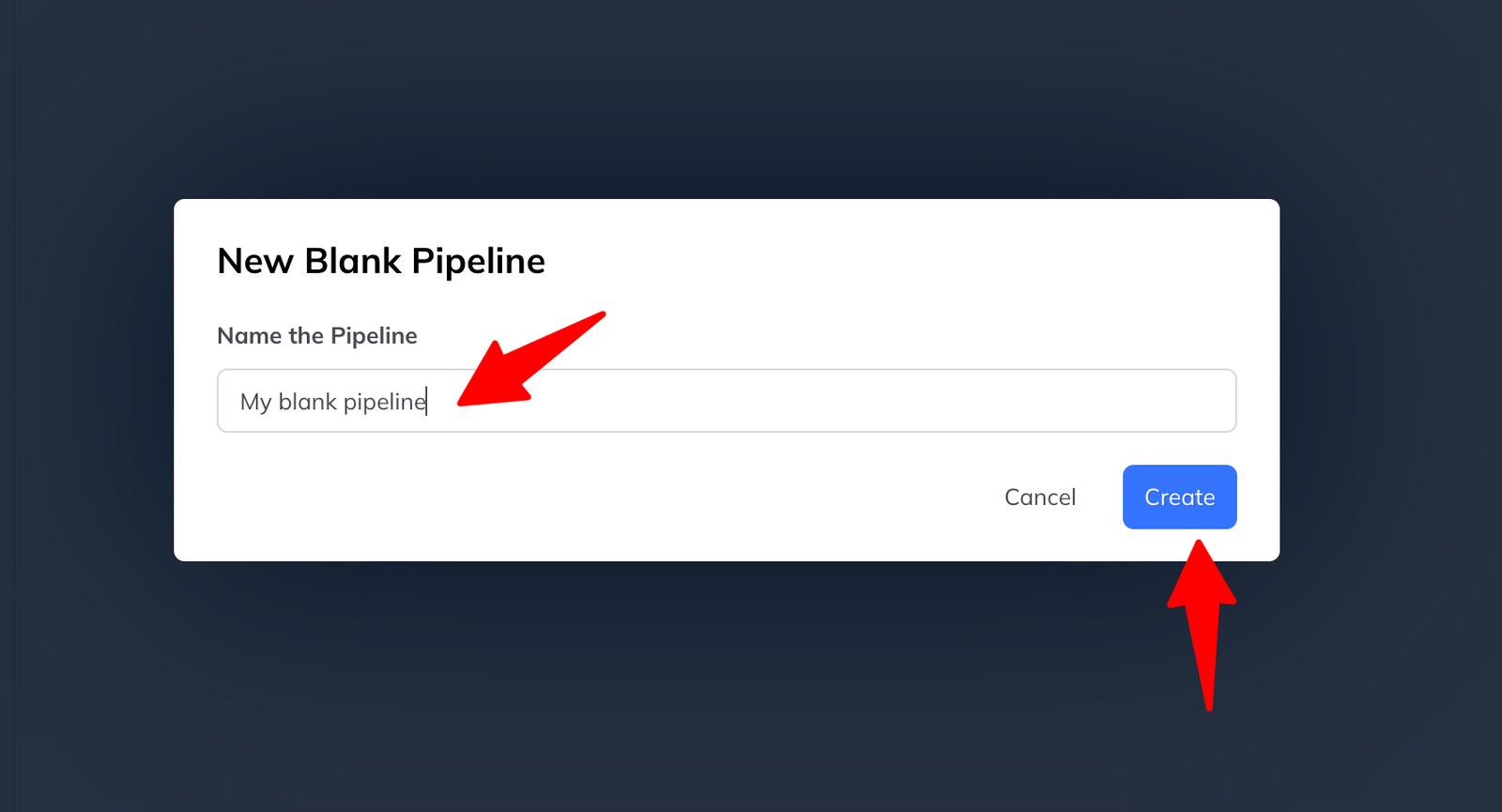
Choose Blank pipeline, name it, click Create. You get an empty board with no columns, ready to build out.
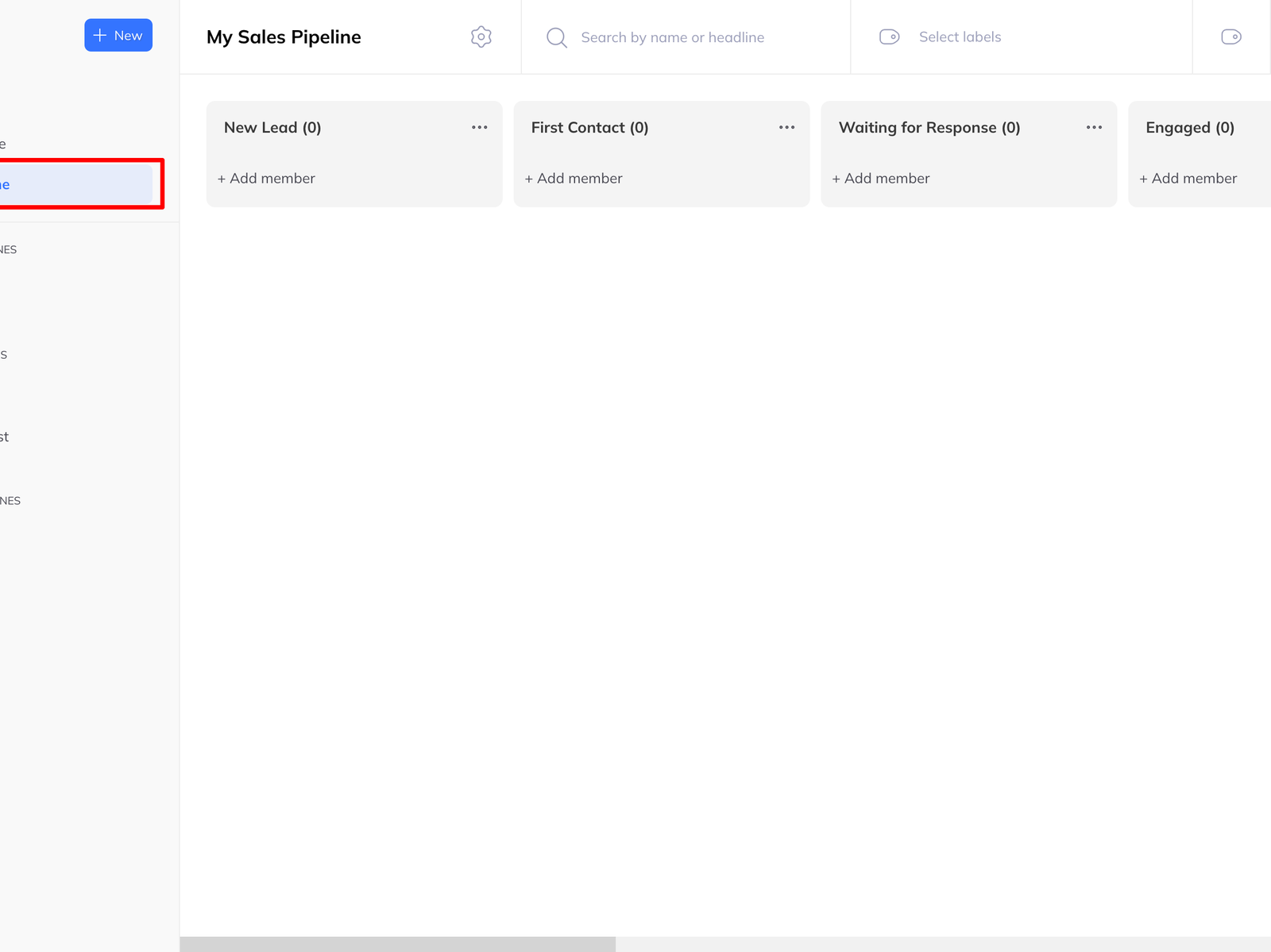
Sales pipeline
A predefined board with eight columns:
- New lead — freshly added
- First contact — outreach started
- Waiting for response
- Engaged — they have shown interest
- Meeting scheduled
- Negotiation
- Won
- Lost
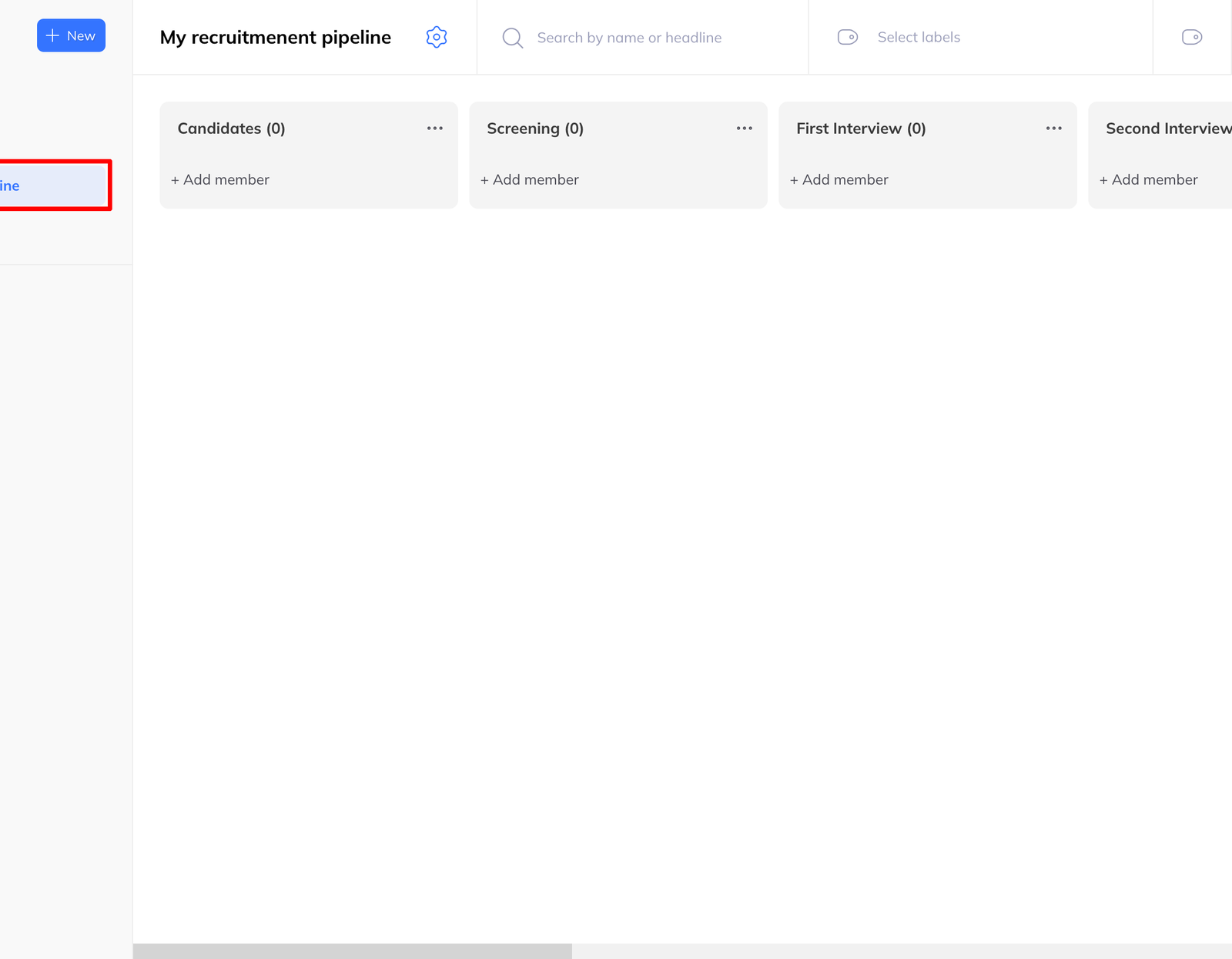
Recruiting pipeline
Also eight columns:
- Candidates — added to the process
- Screening
- First interview
- Second interview
- Offer sent
- Negotiation
- Hired
- Rejected
Both templates are starting points — rename, reorder and add columns freely once created.
Team templates
Team managers can turn a pipeline into a template the whole team can start from:
- Build a pipeline with the columns you want.
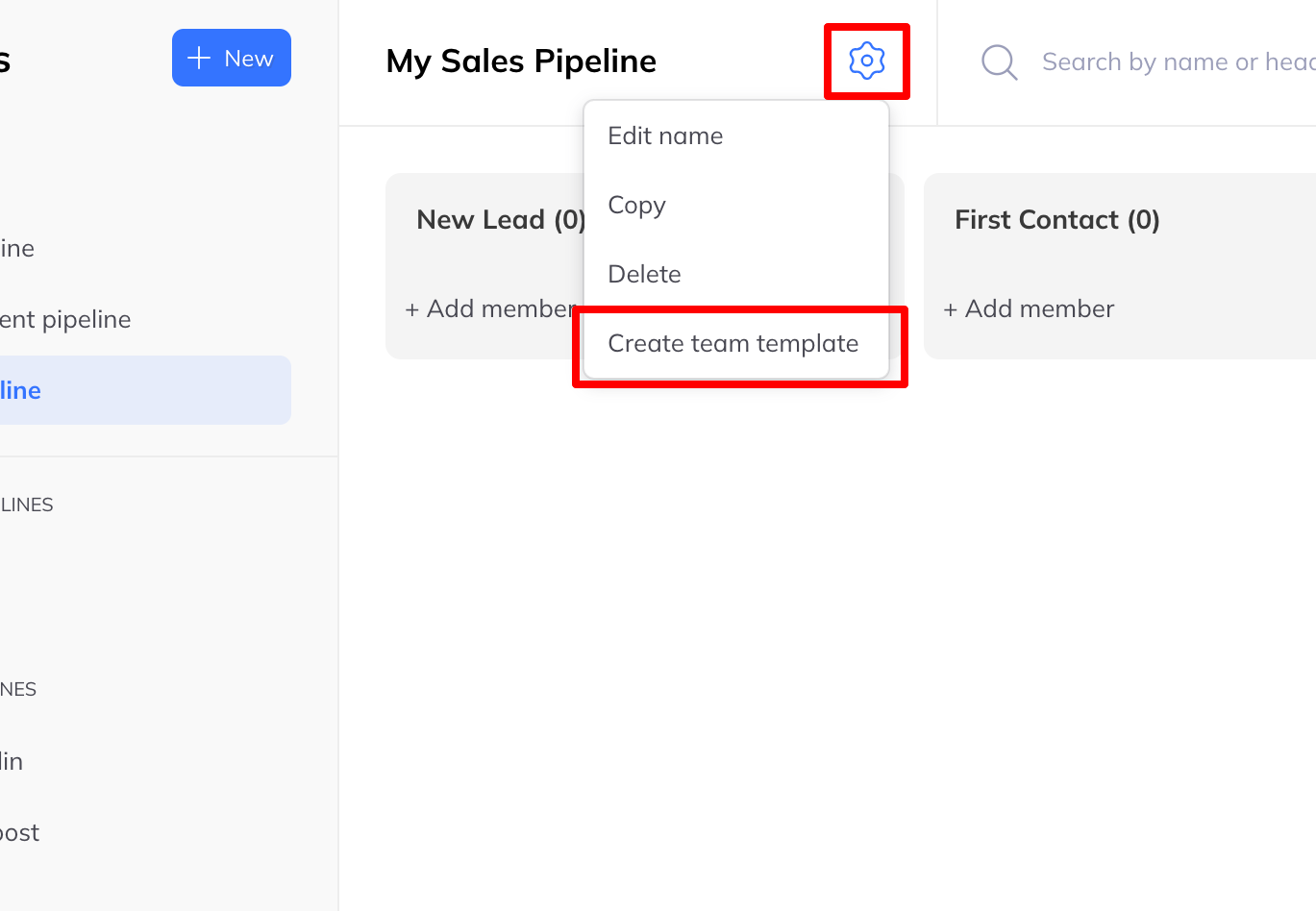
- Click the ⁝ menu at the top of the pipeline.
- Choose Create a team pipeline template.
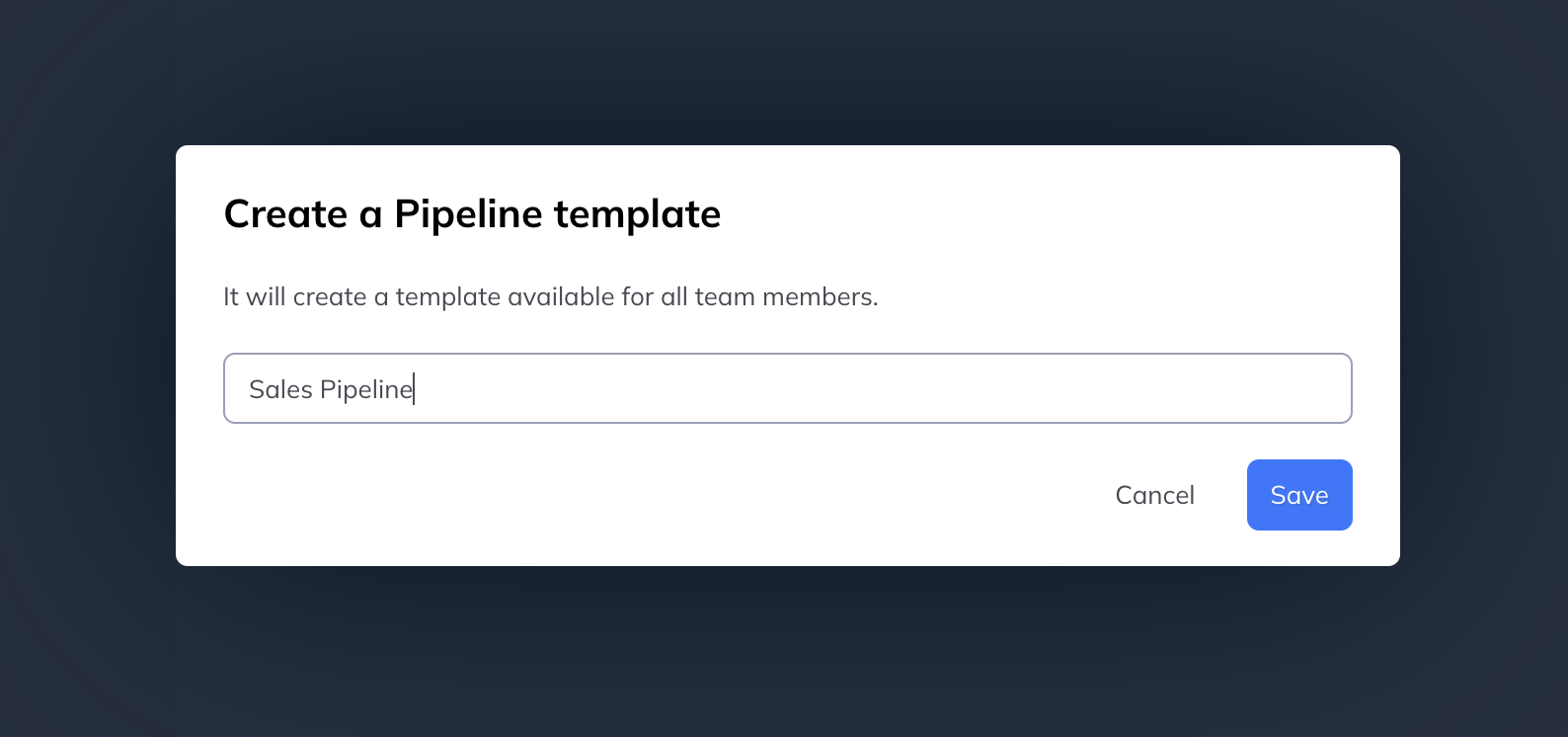
It then appears for everyone under + New → Pipeline from a team template. This is the cheapest way to make sure a team's boards stay comparable.
Duplicating
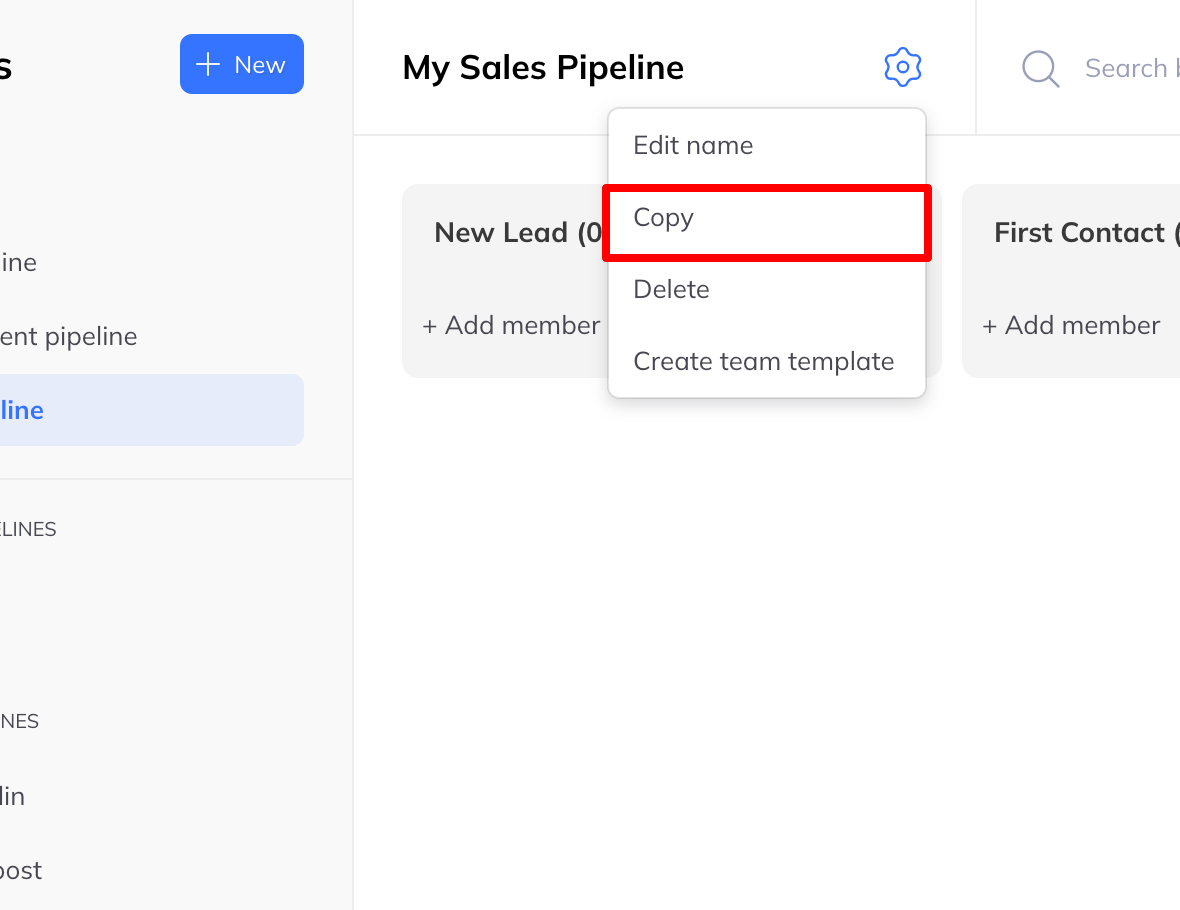
To reuse a structure without making a template of it, click the ⁝ menu beside the pipeline name and choose Duplicate. You get the same columns, no members, and (Copy) on the end of the name.