

Use the API with Zapier
Call the API from a Zap when the built-in trigger is not enough.
Webhooks push data out of LinkedLeads. This is the other direction: a Zap that calls the API to push leads in, from a spreadsheet, a form, or another tool.
Zapier's model is trigger → action. Here the trigger is something happening elsewhere, and the action is an API call to LinkedLeads.
Before you start
- A Pro plan, which is what the API requires
- Your API key enabled in Settings → API
- A Zapier account
1. Copy your API key
Settings → API, enable the key, copy it.
2. Create the Zap and its trigger
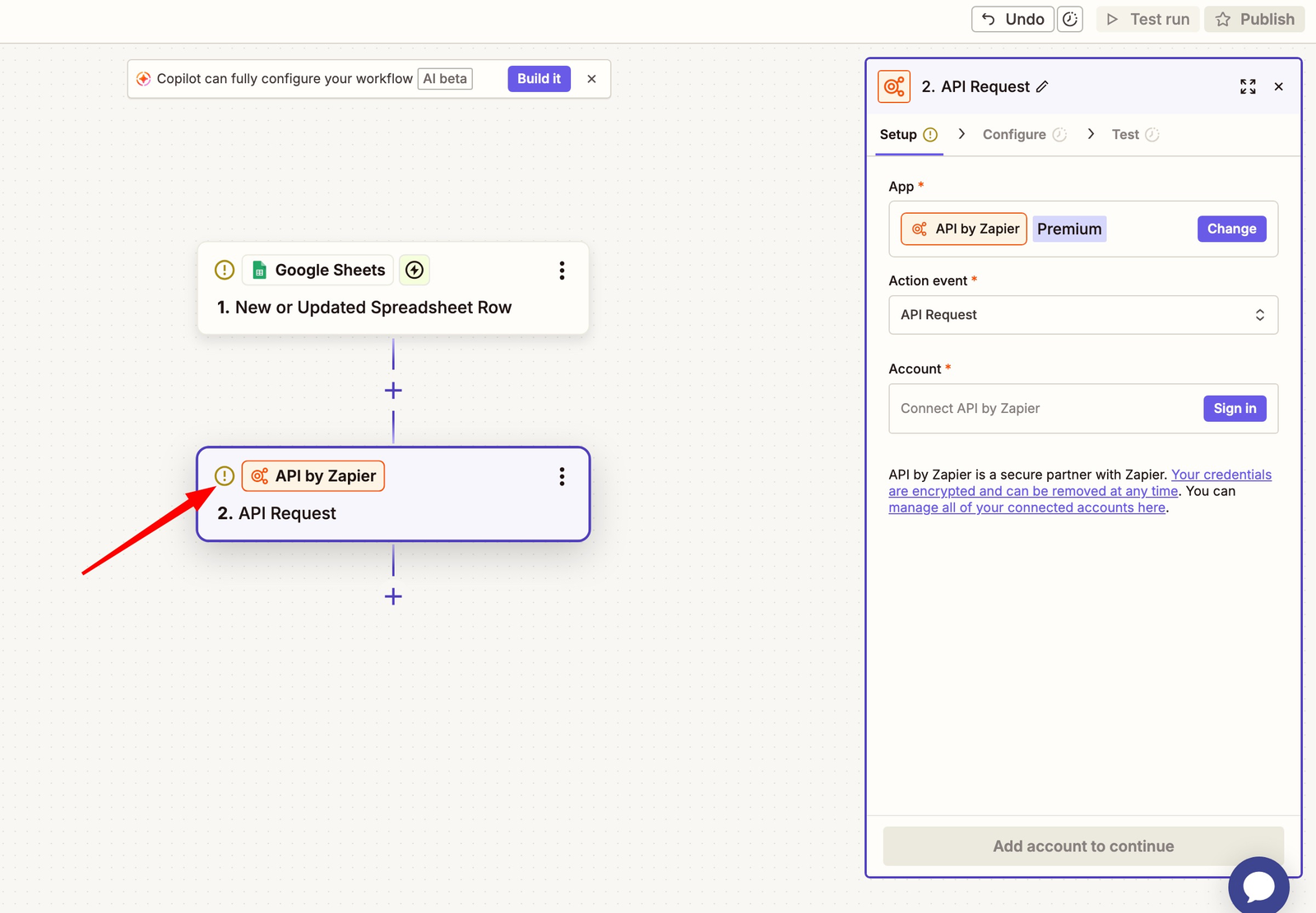
Create a Zap and pick the app that will supply the data — for example Google Sheets → New or updated spreadsheet row, so every new row calls LinkedLeads.
3. Add the API step
- Add a step.
- Search for API by Zapier.
- Choose API Request.
4. Configure the request
Method — usually POST.
URL — the relevant endpoint. The available routes are documented at api.linkedleadsapp.com/docs.
Headers — the authentication header:
X-API-Key: YOUR_API_KEY
Body — the data to send, such as the LinkedIn profile URL and name. Map each field from your trigger rather than typing values, so it works for every row rather than the one you tested with.
5. Test it
Click Test step and check two things: the request succeeded, and the data actually shows up in LinkedLeads looking the way you expected.
6. Publish
Click Publish and it is live.
What people use it for
Leads from a spreadsheet. Every new row becomes a lead.
Leads from forms. Typeform, Tally, Webflow — every submission becomes a lead.
Leads from other systems. Push qualified prospects in from an internal database or another CRM.
Worth doing
- Validate the data before sending it — bad rows are easier to stop here than to clean up afterwards
- Keep the API key out of anything client-side
- Start with one simple Zap and add to it once it has run for a week