

Send data automatically with webhooks
Fire a request at your own endpoint when something happens.
A webhook sends a lead's data to another system — your CRM, an internal tool — the moment something happens in LinkedLeads, so the two stay in step without anyone copying anything.
Create one
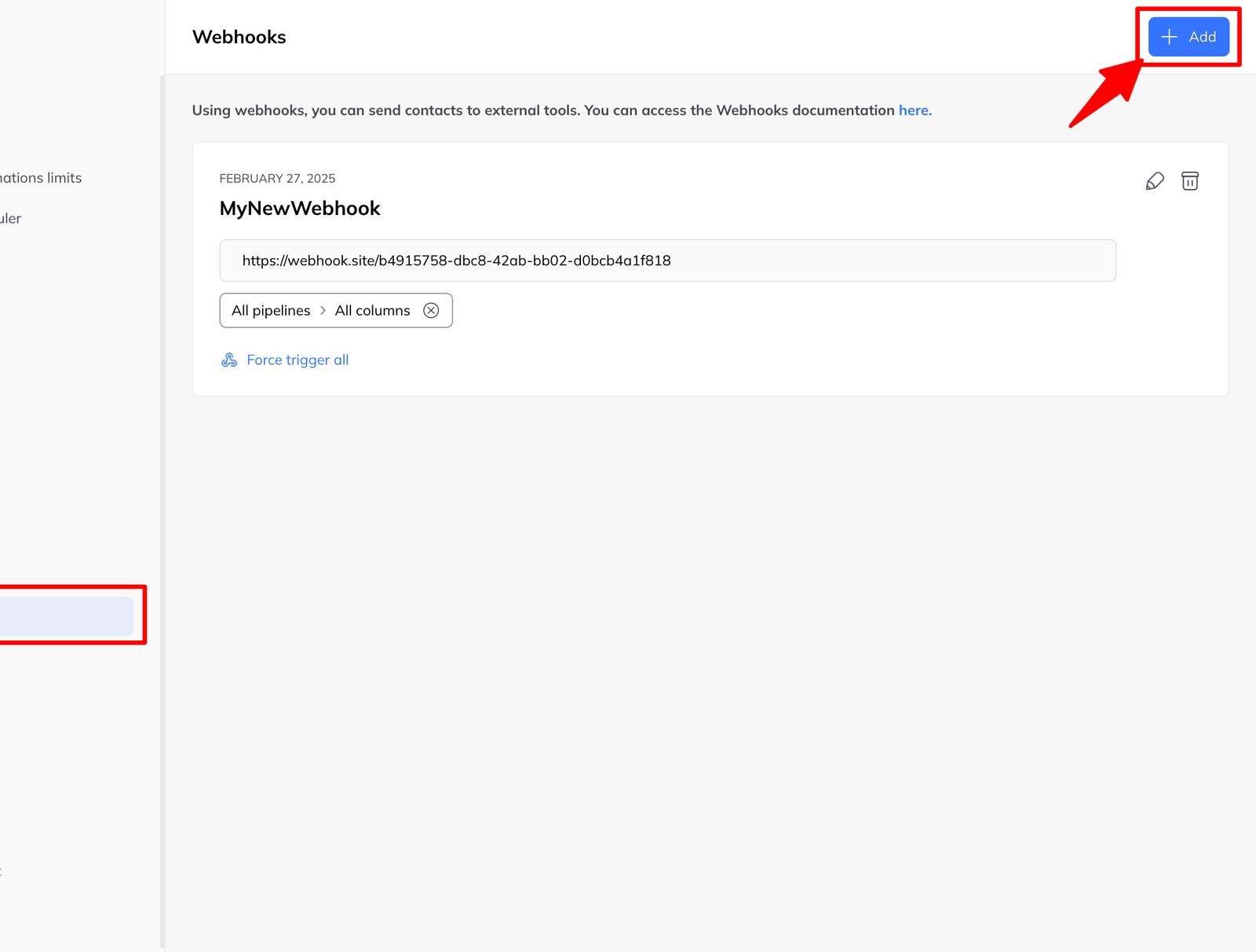
- Go to Settings → Webhooks.
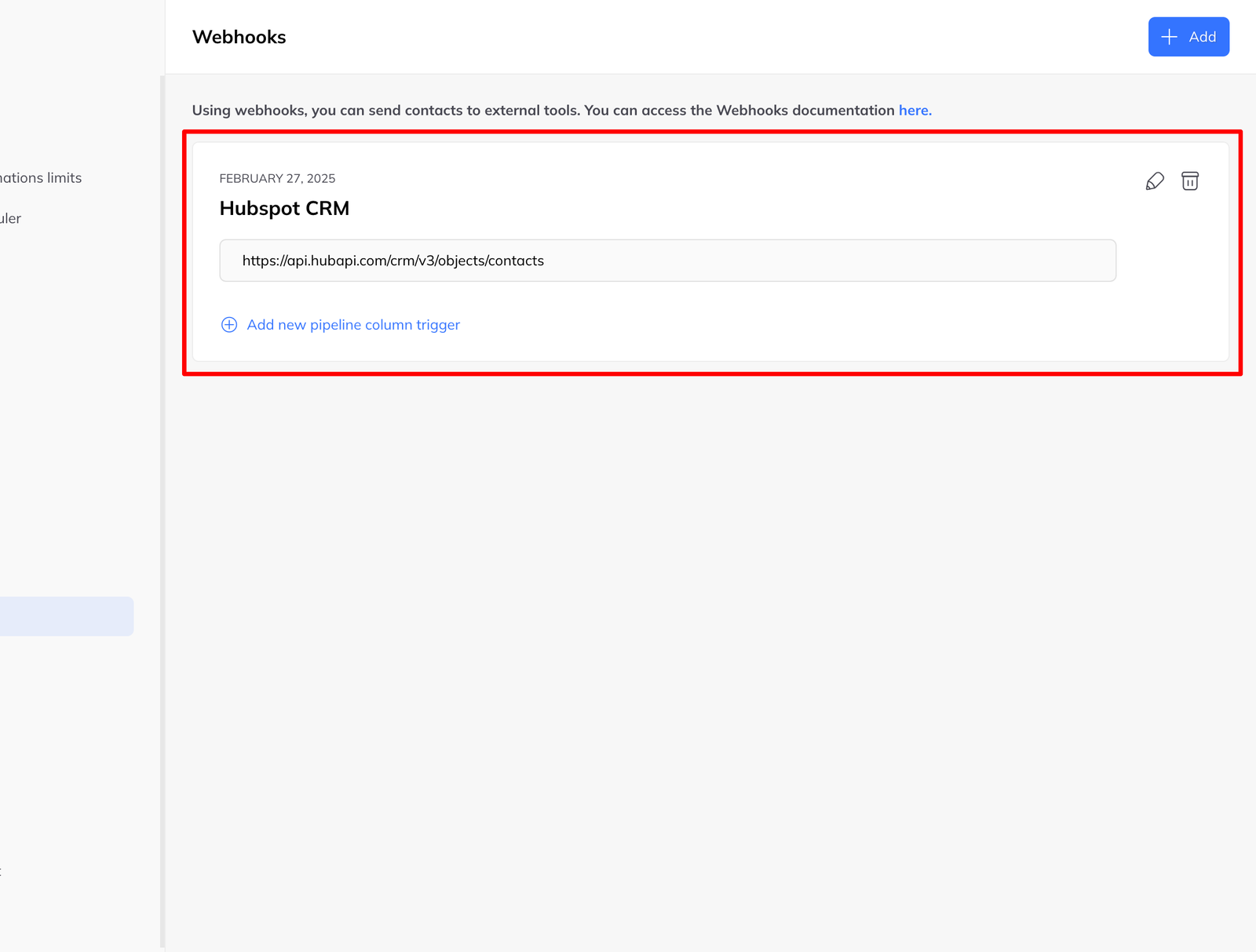
- Click New webhook.
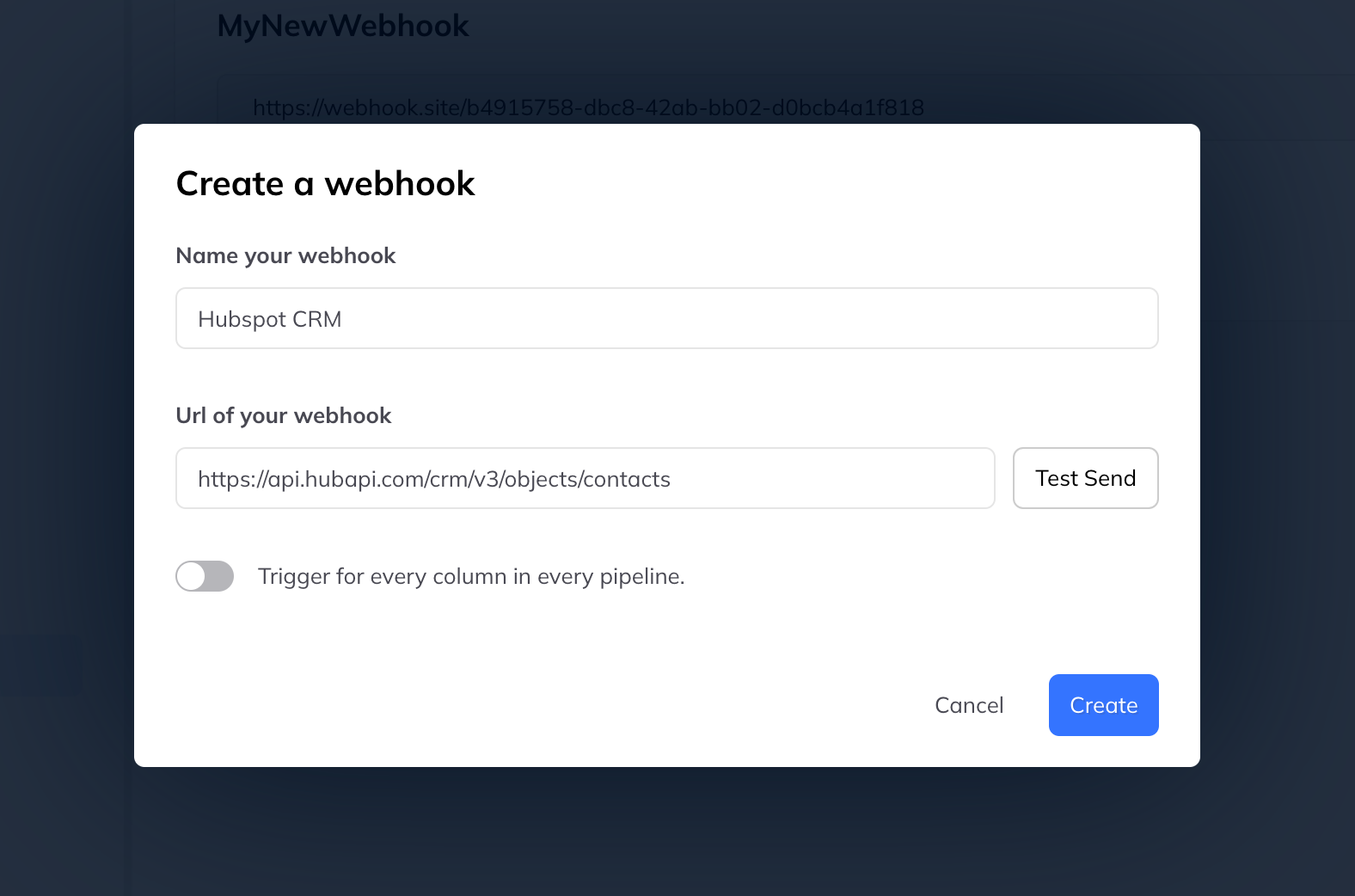
- Give it a name and the target URL to send data to.
Fire it from a pipeline column
Link a webhook to one or more pipeline columns and it fires as leads arrive there.
From the webhook list
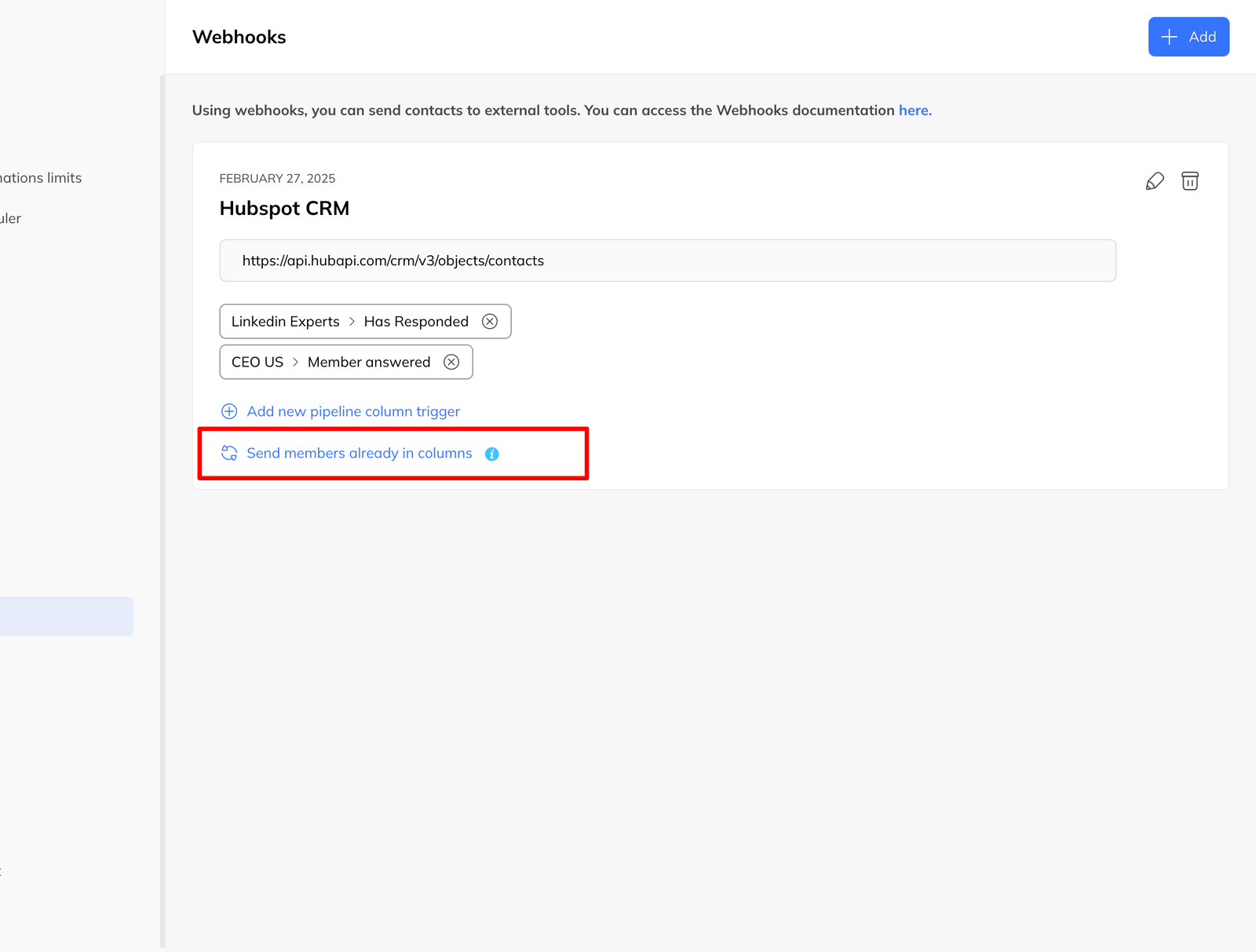
- Settings → Webhooks, find the webhook, click + Add pipeline column trigger.
- Choose the pipeline and the column.
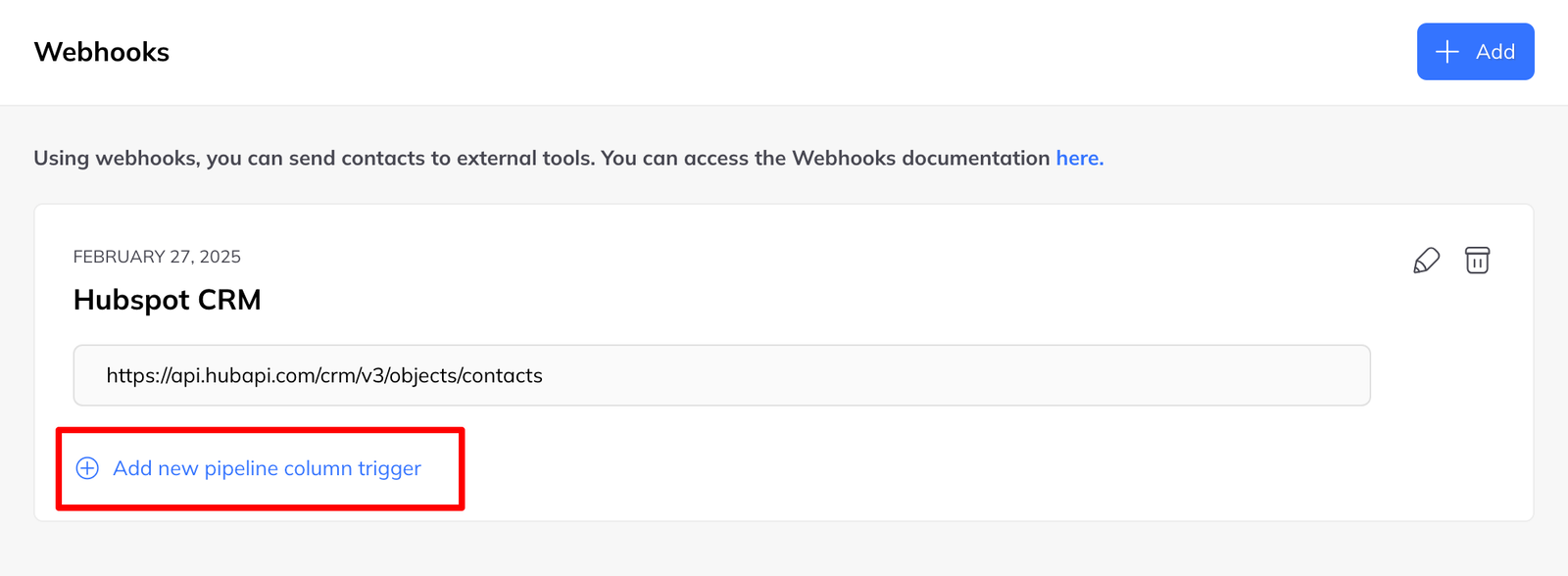
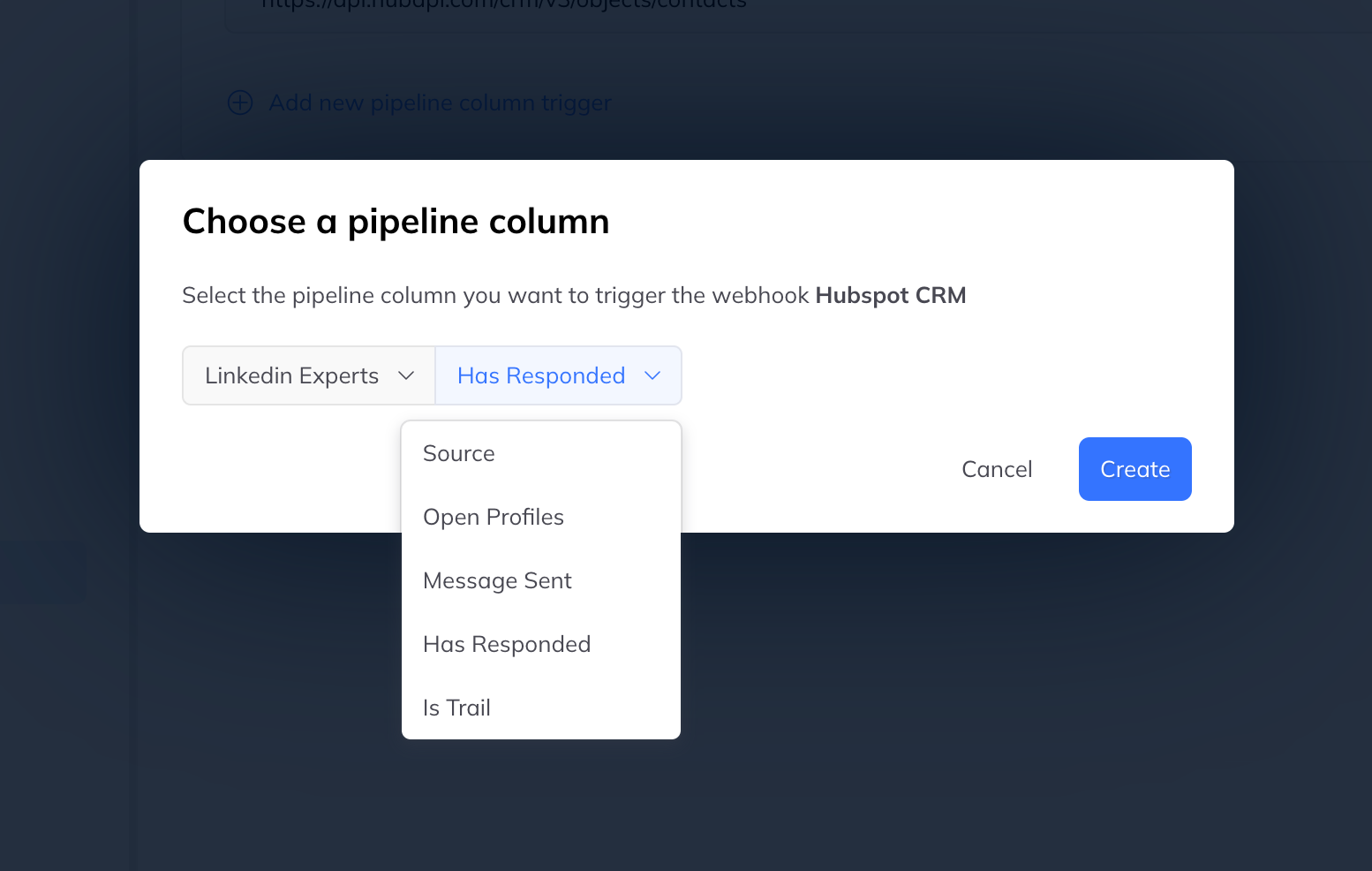
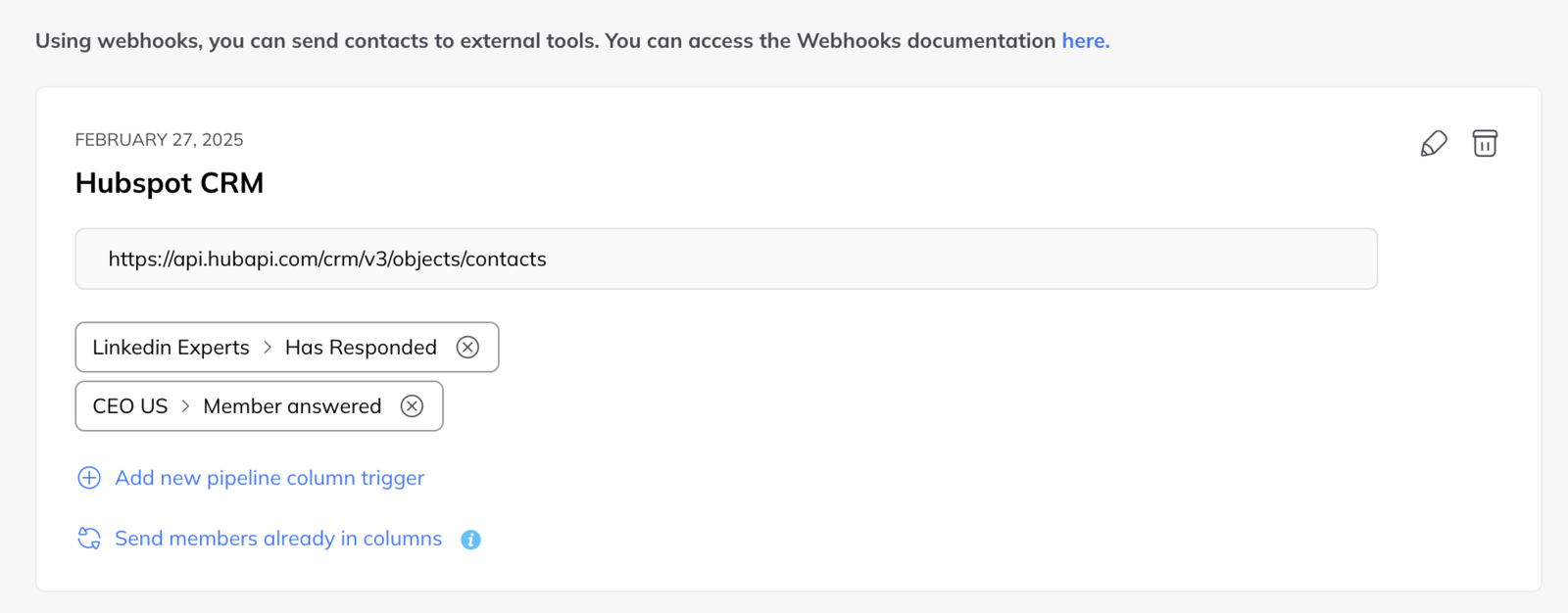
Repeat to trigger the same webhook from more than one column.
From the pipeline
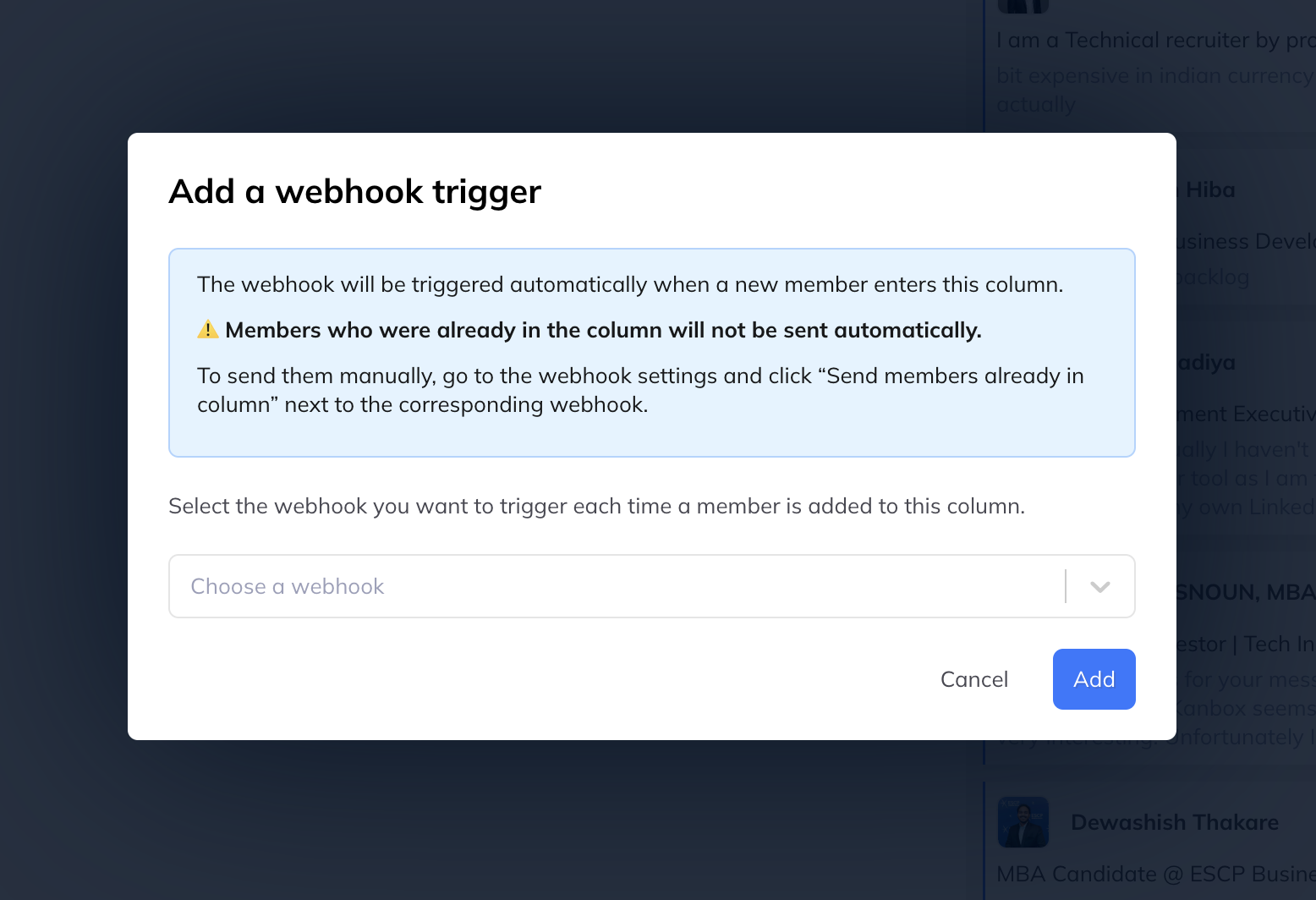
- Open the pipeline and click the ⁝ menu on a column.
- Choose Add webhook and pick an existing one.
Fire one by hand
From a member's profile there is an action button to trigger a webhook for that person immediately, without waiting for them to move columns. Useful when you have decided something mid-conversation.
Test it before you rely on it
Use webhook.site. It gives you a throwaway URL and logs every request, so you can see exactly what LinkedLeads sends before you point the webhook at anything real.
Worth doing first — it is much easier to read the payload there than to work out afterwards why a CRM record came through half empty.