
How the inbox works
Filters, labels and the panels either side of a conversation.
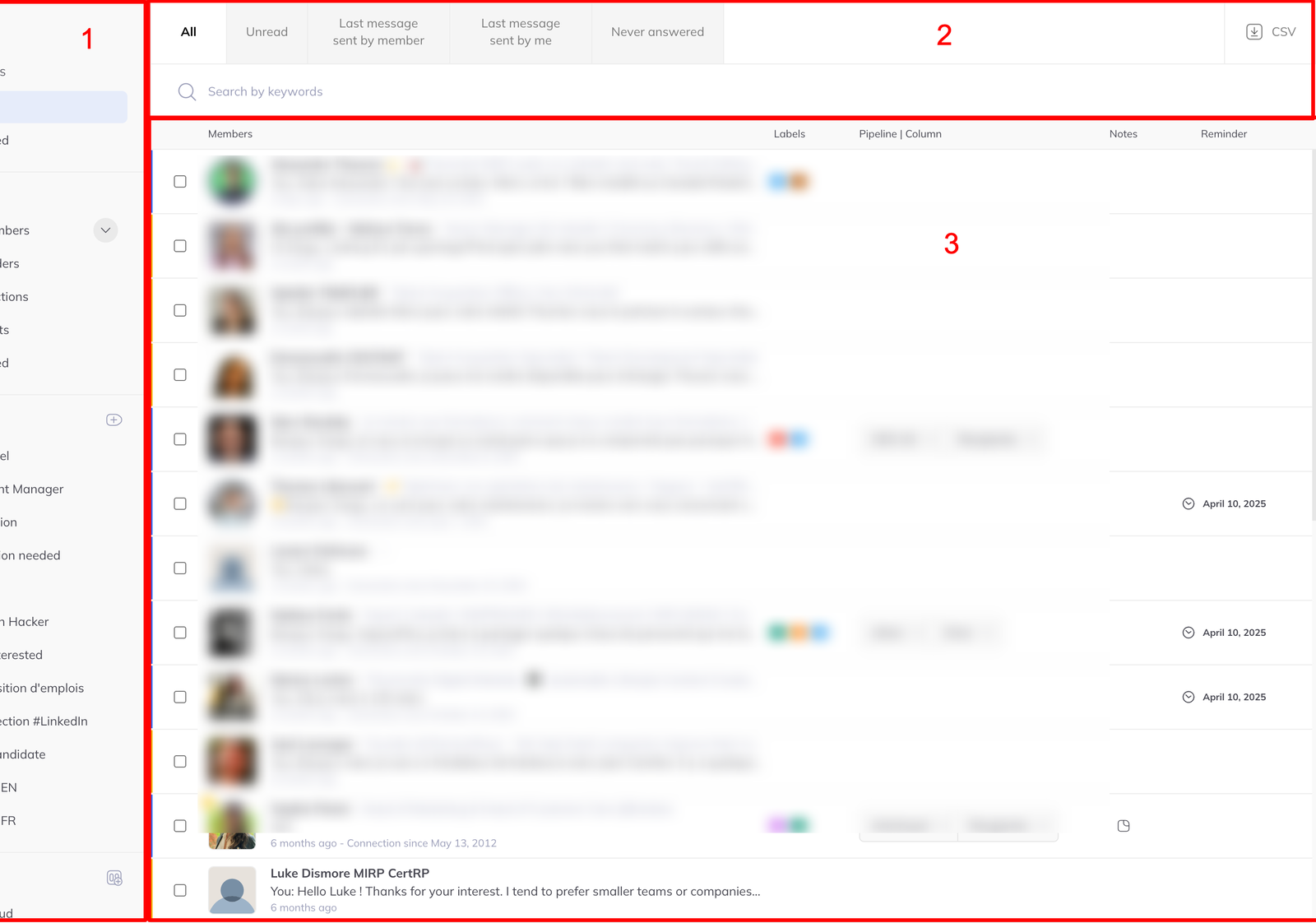
The inbox is three areas: filters down the left, filters and search across the top, and the list of people in the middle.
The sidebar
Conversations
- Inbox — active conversations, mirrored from LinkedIn
- Archived — conversations you archived on LinkedIn
My network
- All members — everyone visible in your inbox, except those you have archived inside LinkedLeads
- Reminders — people with an active reminder
- Connections — your 1st-degree LinkedIn connections
- Contacts — people you imported, or messaged without connecting
- Archived — people you archived inside LinkedLeads
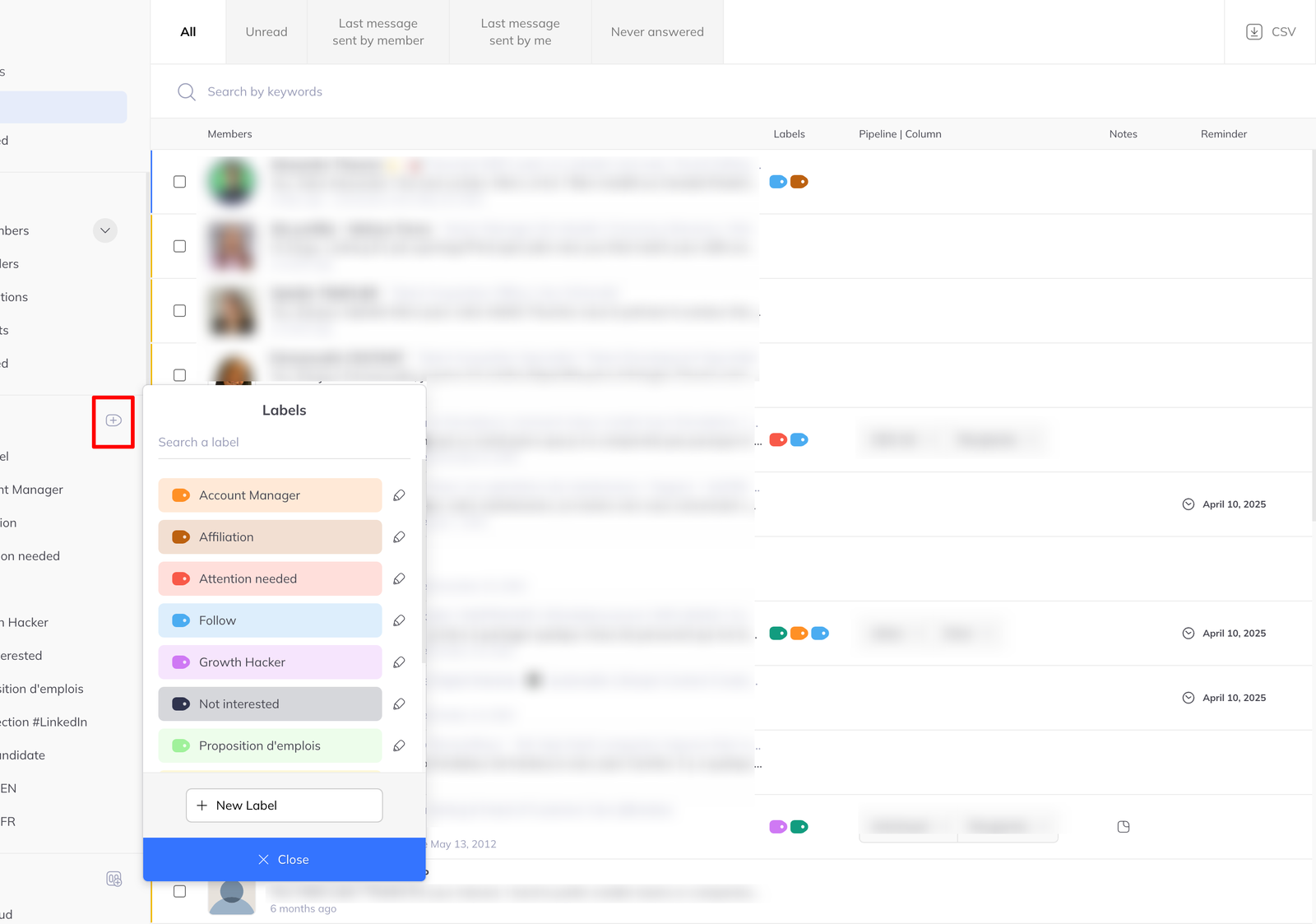
Labels — your own tags.
Pipelines — your boards. Click one to jump straight to a column.
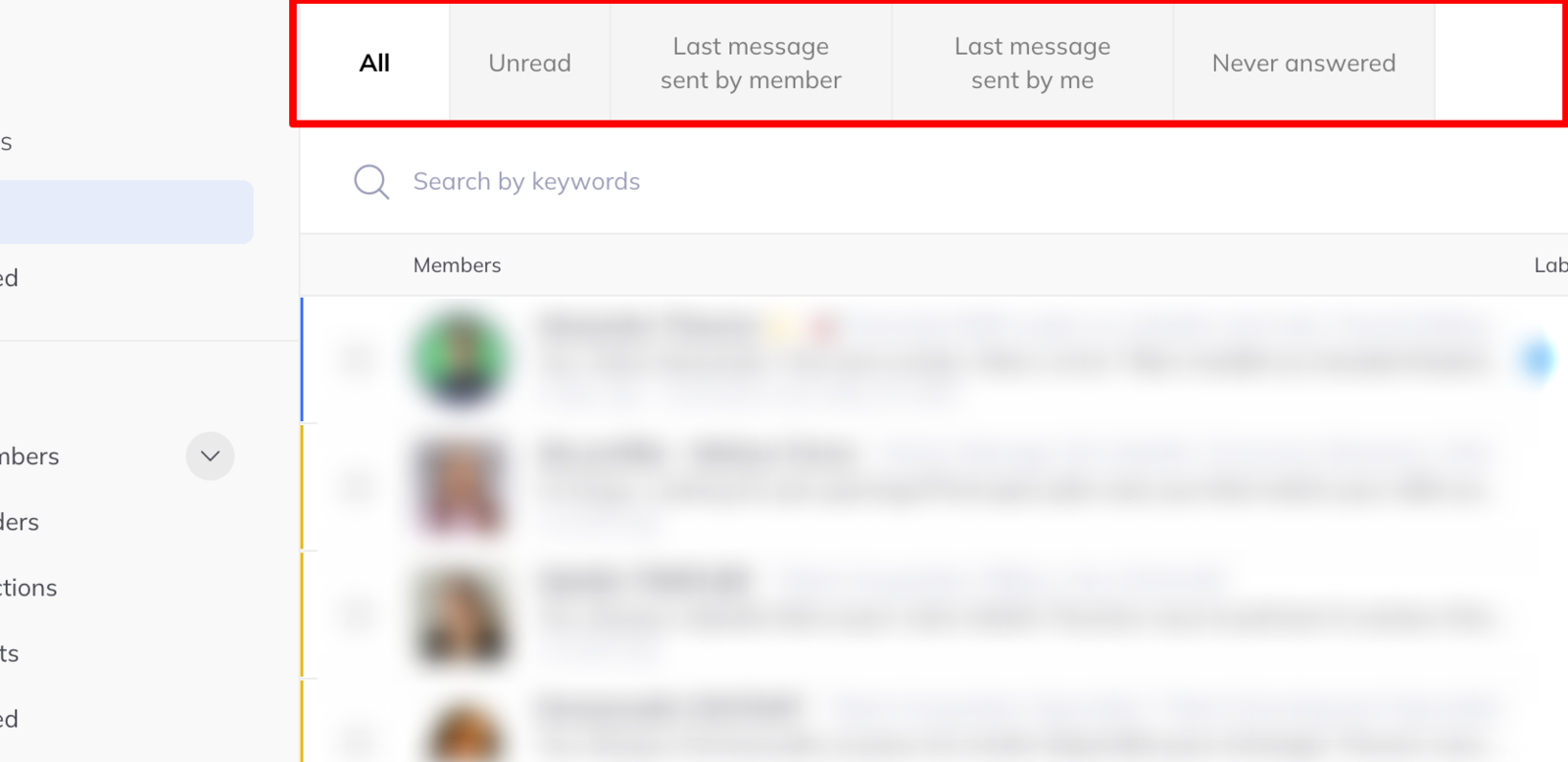
Smart filters
Across the top of the Inbox view:
- All
- Unread
- Last message sent by member
- Last message sent by me
- Never answered
Last message sent by member is your reply queue. Never answered is the follow-up queue. Between them they cover the two ways a conversation goes cold.
Search behaves differently by view
- In the Inbox, search looks inside the messages themselves
- Everywhere else, it matches name, surname or headline
Labels
Apply one or more labels to anyone — Hot lead, Recruiter, Follow up. Clicking a label filters the view to it. See apply labels from the inbox, a chat or a pipeline.
Quick actions on hover
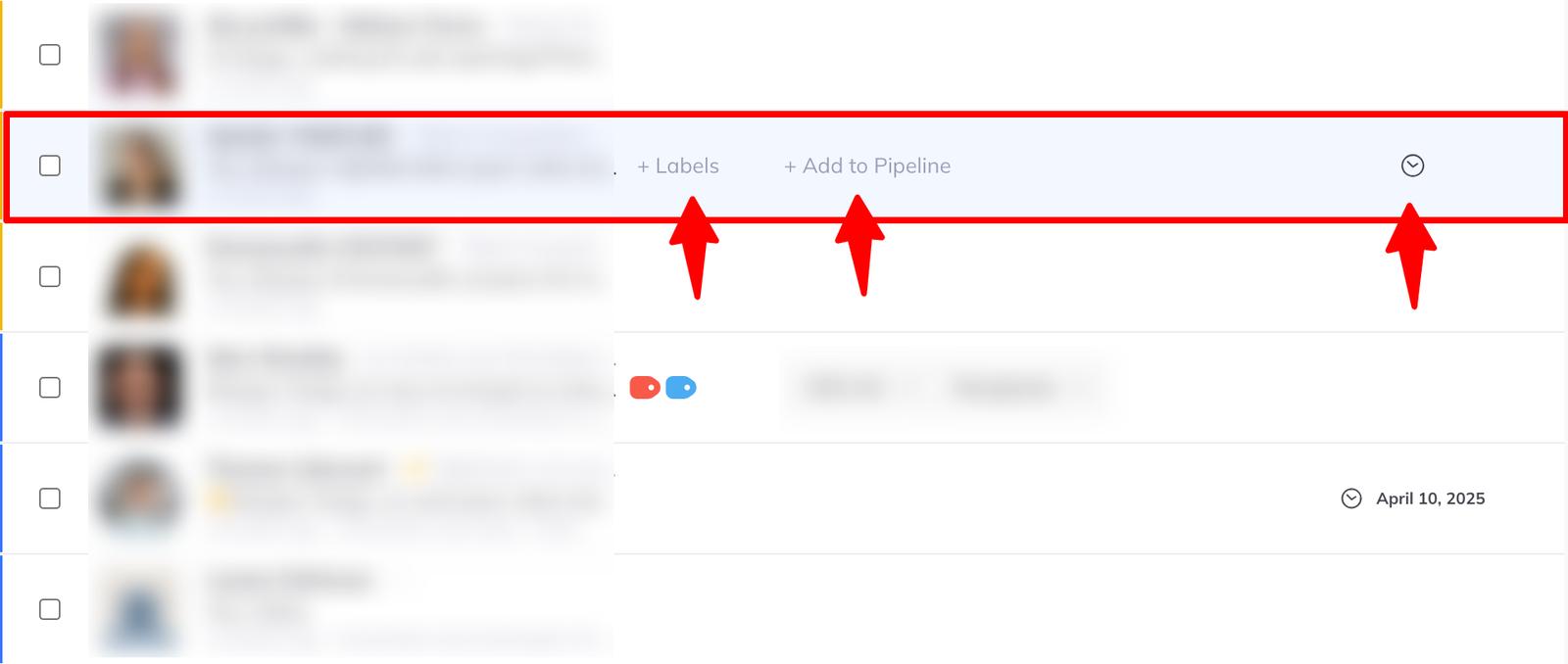
Hover over a row and you can act without opening anything:
- Add a label
- Add to a pipeline
- Schedule a reminder
Exporting what you are looking at
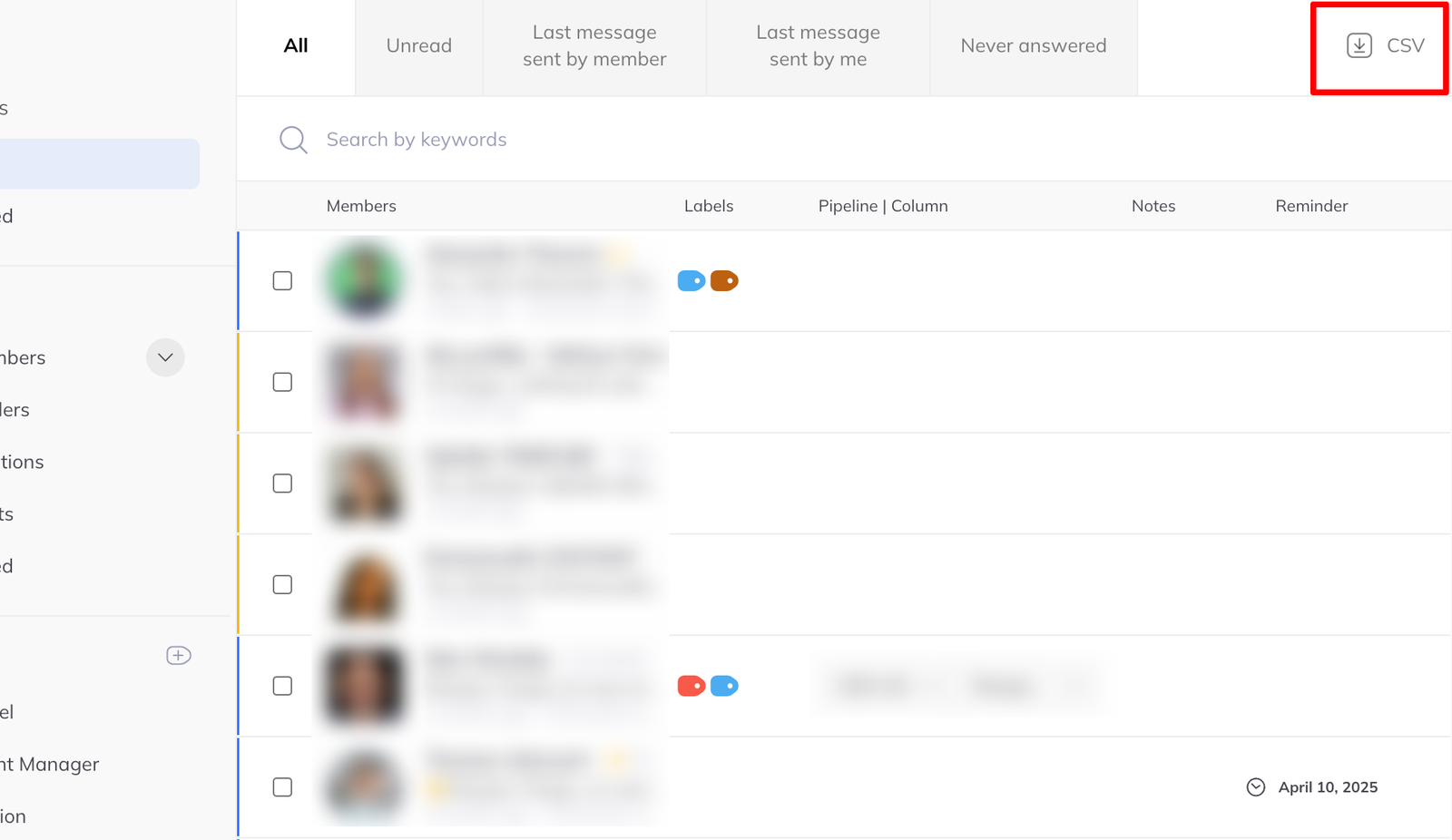
The Export button produces a CSV of every member currently visible under your filters — so filtering first is how you export a segment.
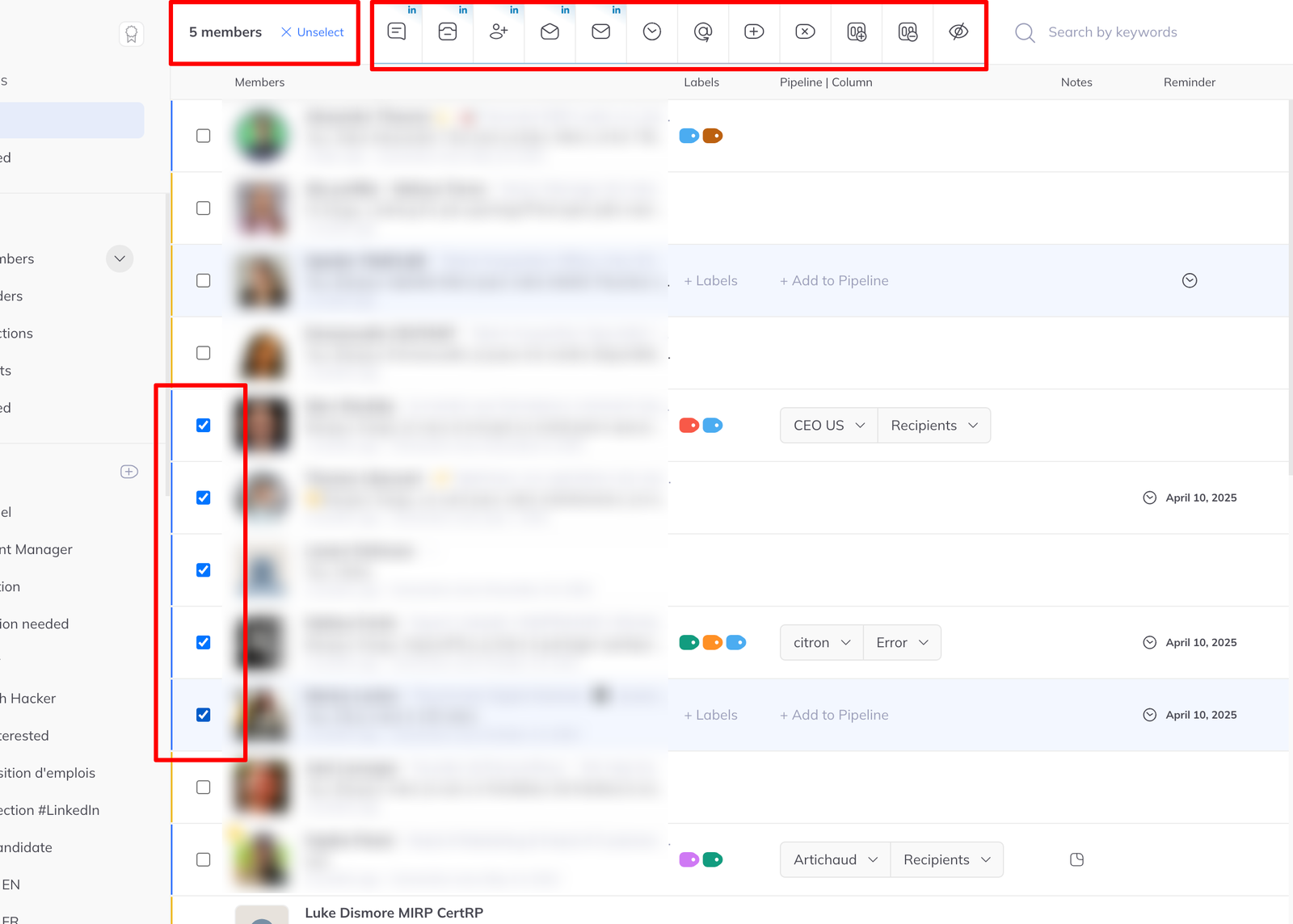
Batch actions
Select members and a batch action menu replaces the search bar. What it offers depends on which sidebar filter you are in. See run batch actions in the inbox.