

Apply labels from the inbox, a chat or a pipeline
The three places a label can be put on a lead.
Labels can be applied from three places, and which you use depends on where you are when you decide someone needs one.
From the inbox
On hover. Hover over a member in the central list to reveal the quick actions, and click Add label. You can apply more than one.
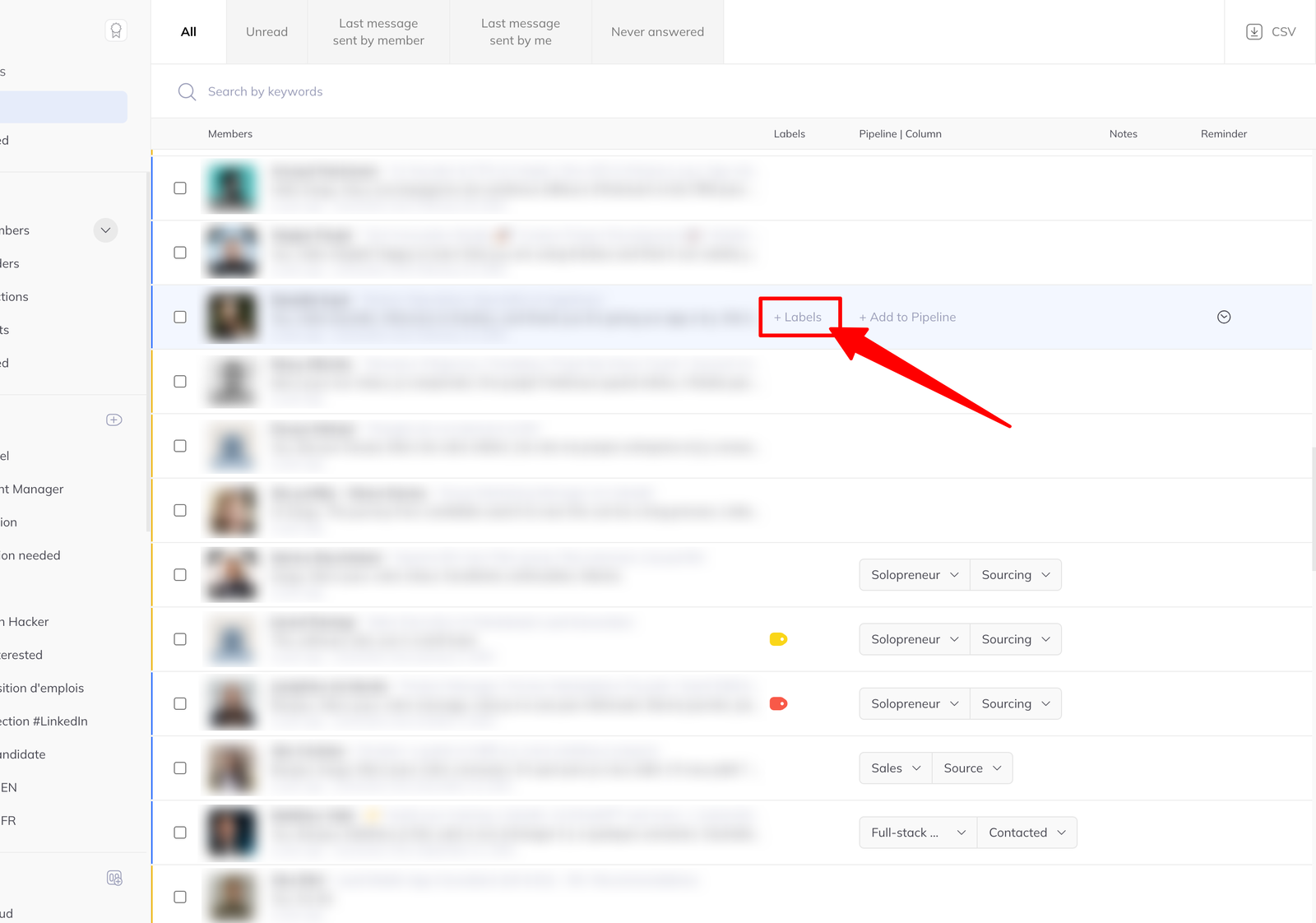
In bulk. Tick several members and use Add labels in the batch action menu. See run batch actions in the inbox.
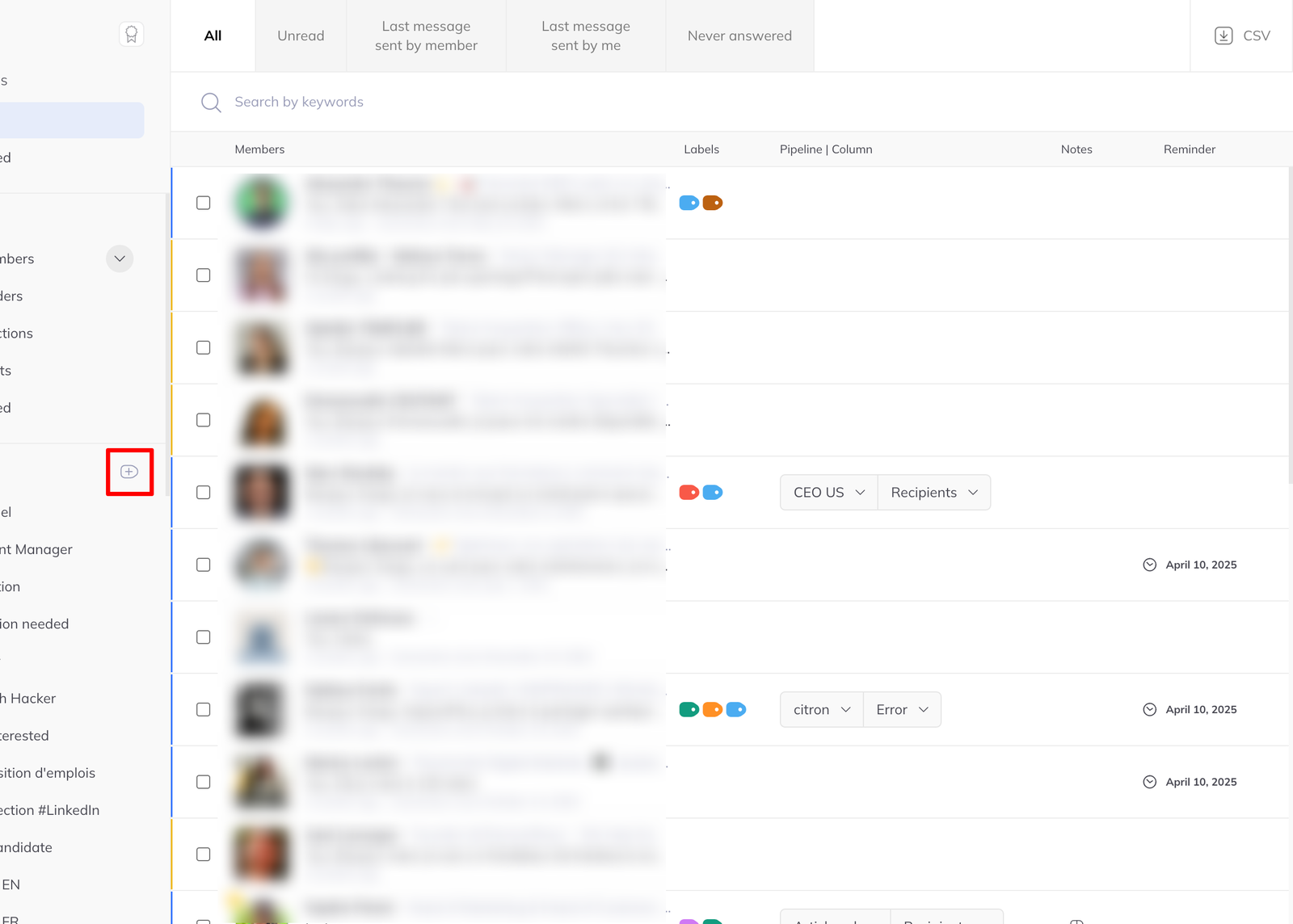
Managing the labels themselves. In the left-hand sidebar, click Manage labels to create, edit or delete them.
From a conversation
Open a member's chat. In the right-hand panel, under the actions section alongside Pipeline and reminder, you will find the labels currently applied and the option to add or remove them for this lead.
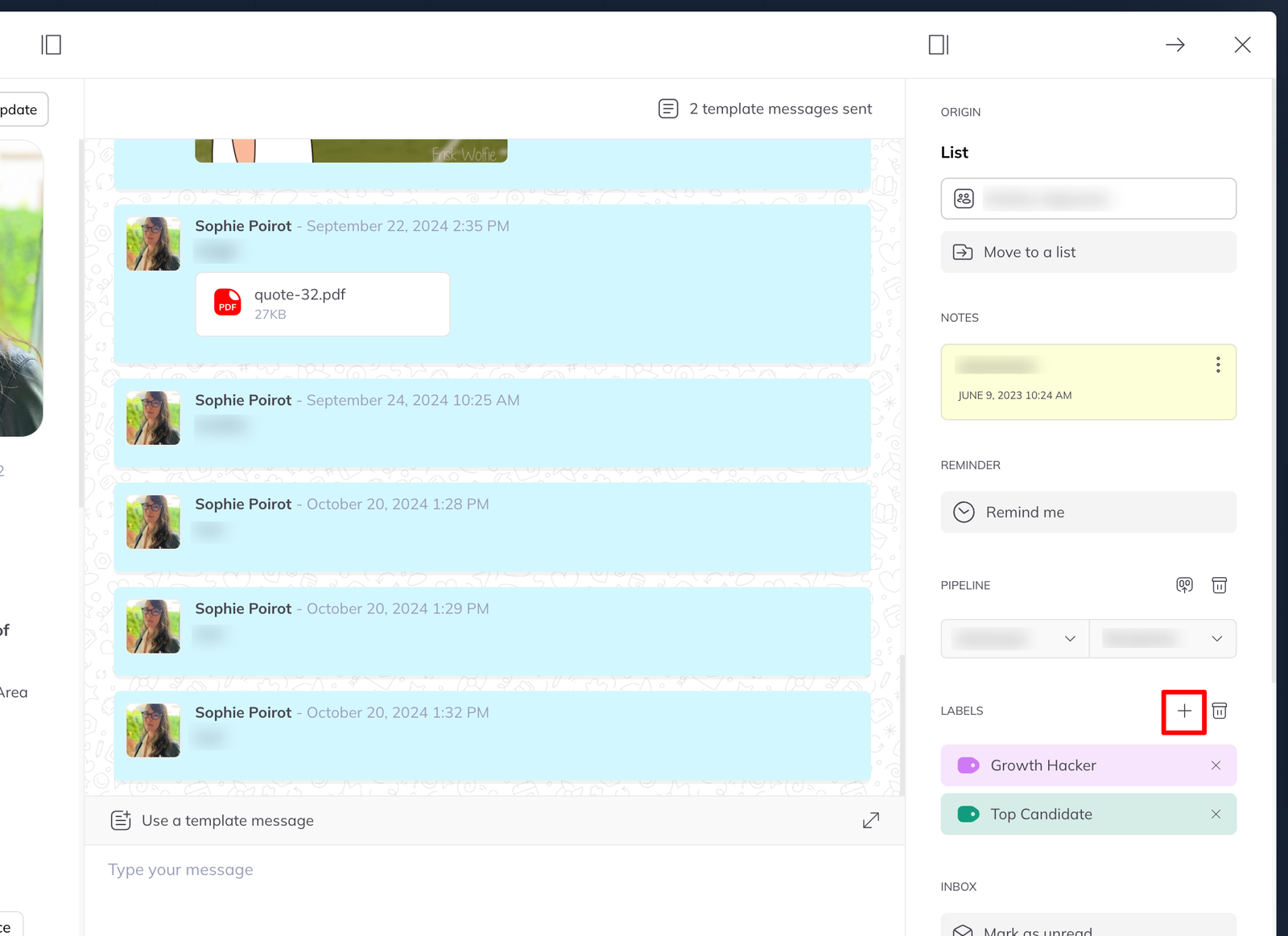
This is the natural moment to label someone: they have just told you something that changes how you think of them.
From a pipeline
Click Manage labels at the top right of any pipeline page.
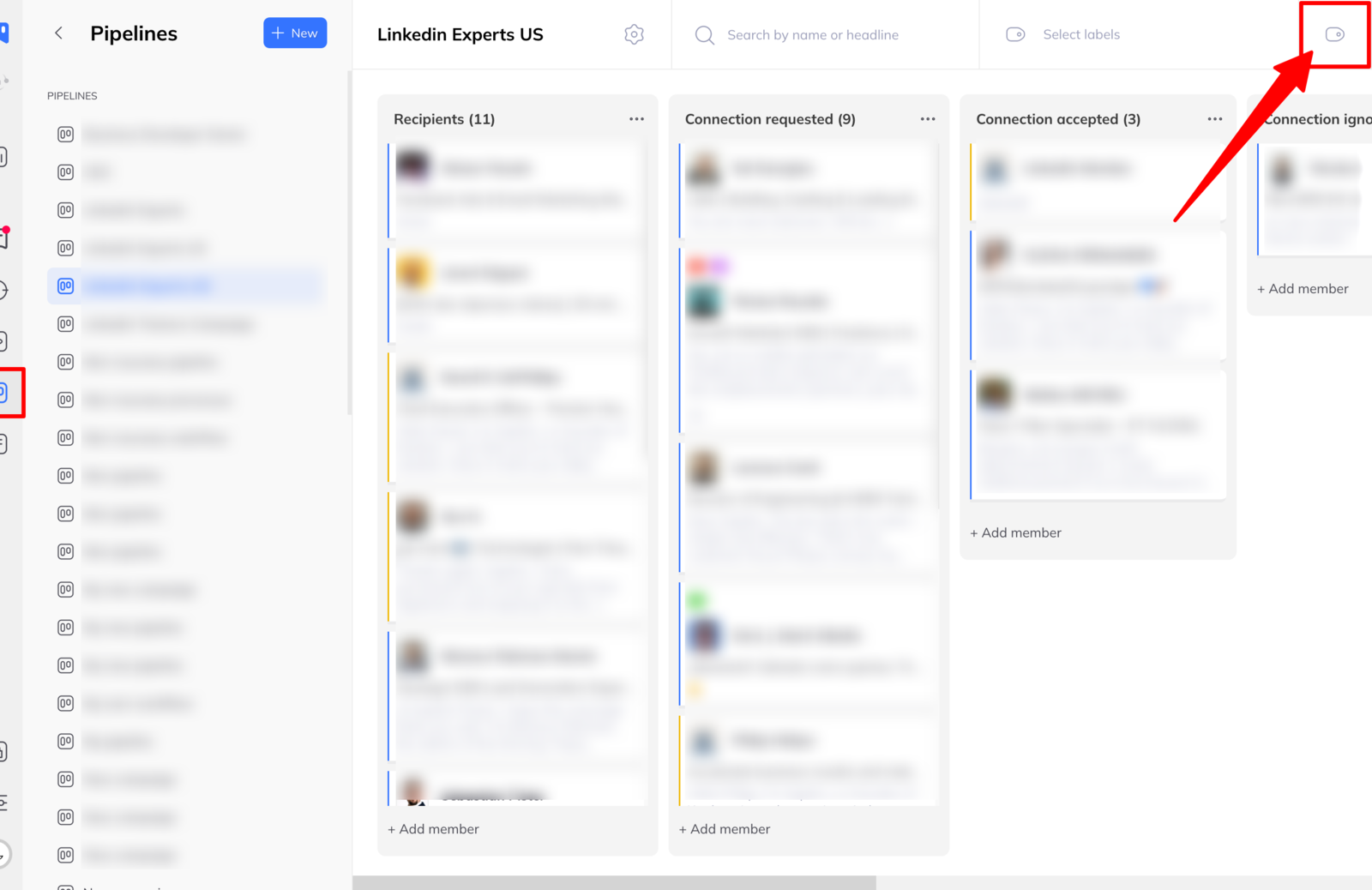
You can also select several members in a column and apply labels to all of them from the batch action menu. See actions you can run from a pipeline column.
Filtering by label
Wherever labels can be applied they can also be filtered on. Clicking a label in the inbox sidebar narrows the view to it; pipelines have a label filter in the header.