

Create your account and sign in
Sign up, install the extension and connect a LinkedIn account.
There are two ways in. Which one applies to you depends on whether you are using your own LinkedIn account or managing someone else's.
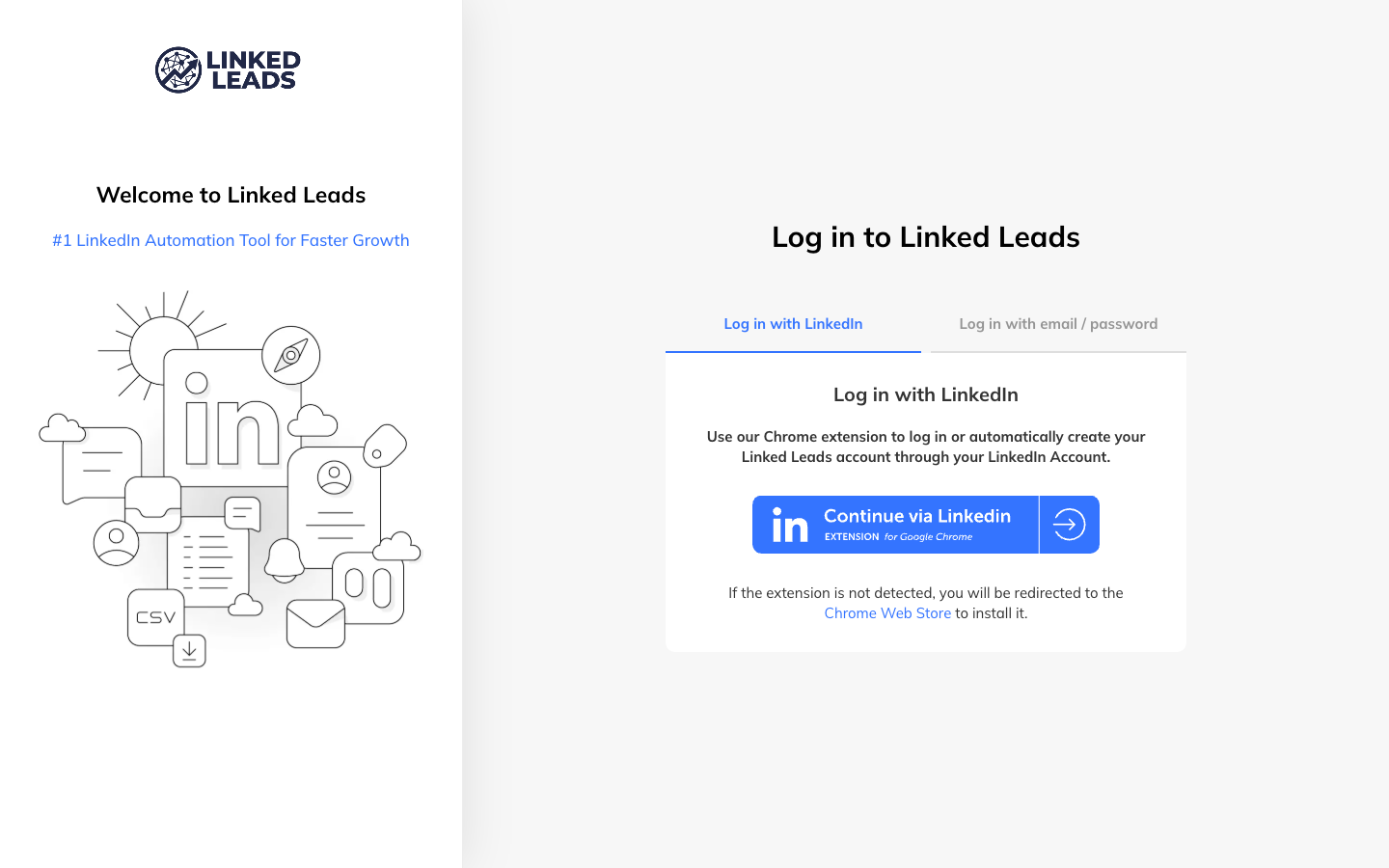
Signing in with LinkedIn
This is the normal route, and the one to use if you are working your own LinkedIn account.
You need three things:
- Google Chrome, or another Chromium browser
- An active LinkedIn session in one of your tabs
- The LinkedLeads Chrome extension — you will be prompted to install it if it is not detected
Then:
- Make sure you are signed in to LinkedIn in another tab.
- Go to app.linkedleadsapp.com.
- The extension checks for your LinkedIn session.
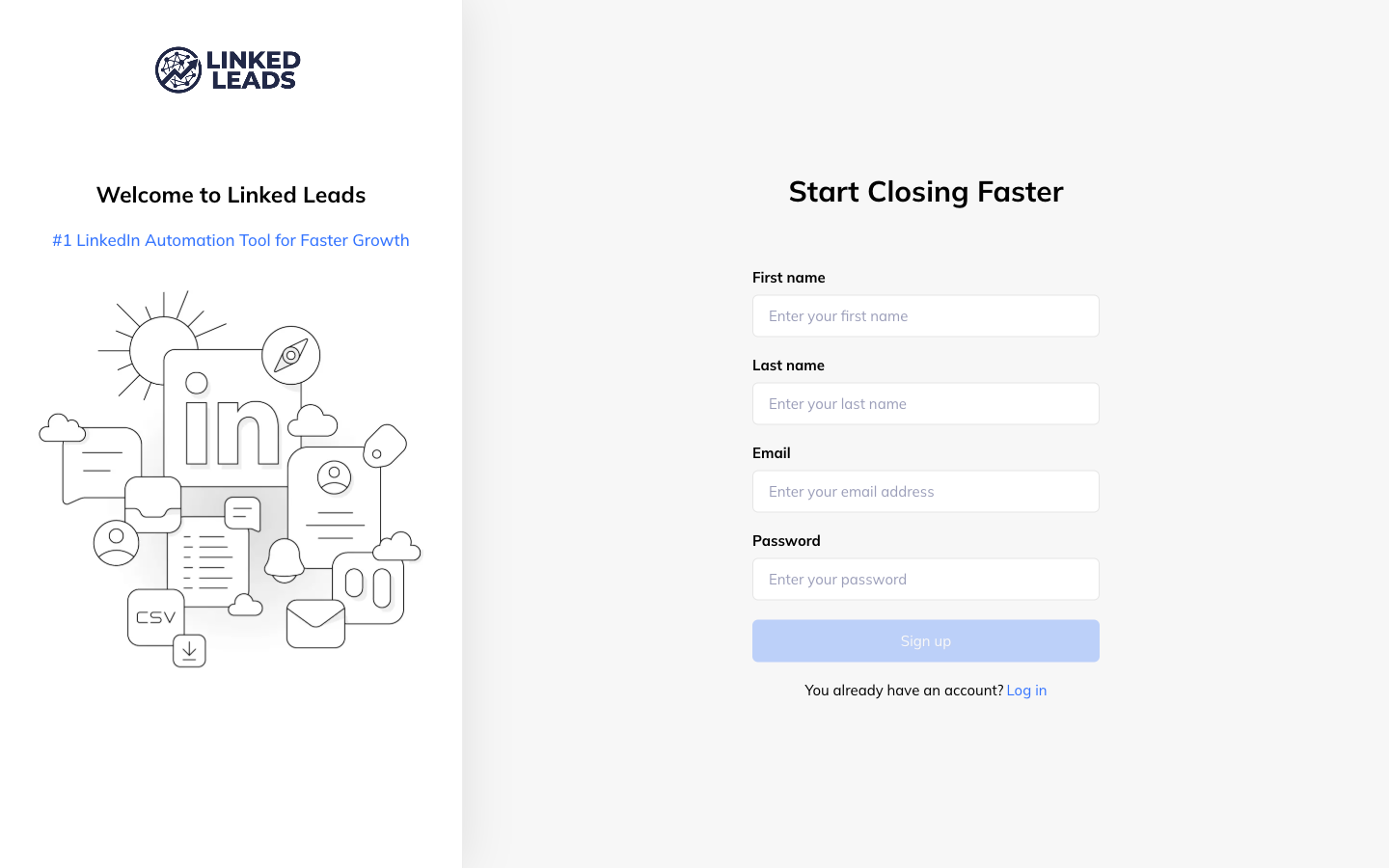
- If you do not have a LinkedLeads account yet, one is created for you.
- You land in your workspace with your LinkedIn messaging already there.
There is no form and no password. Your LinkedLeads account is tied to your LinkedIn profile, and your 15-day trial starts the moment it is created.
Signing in with an email and password
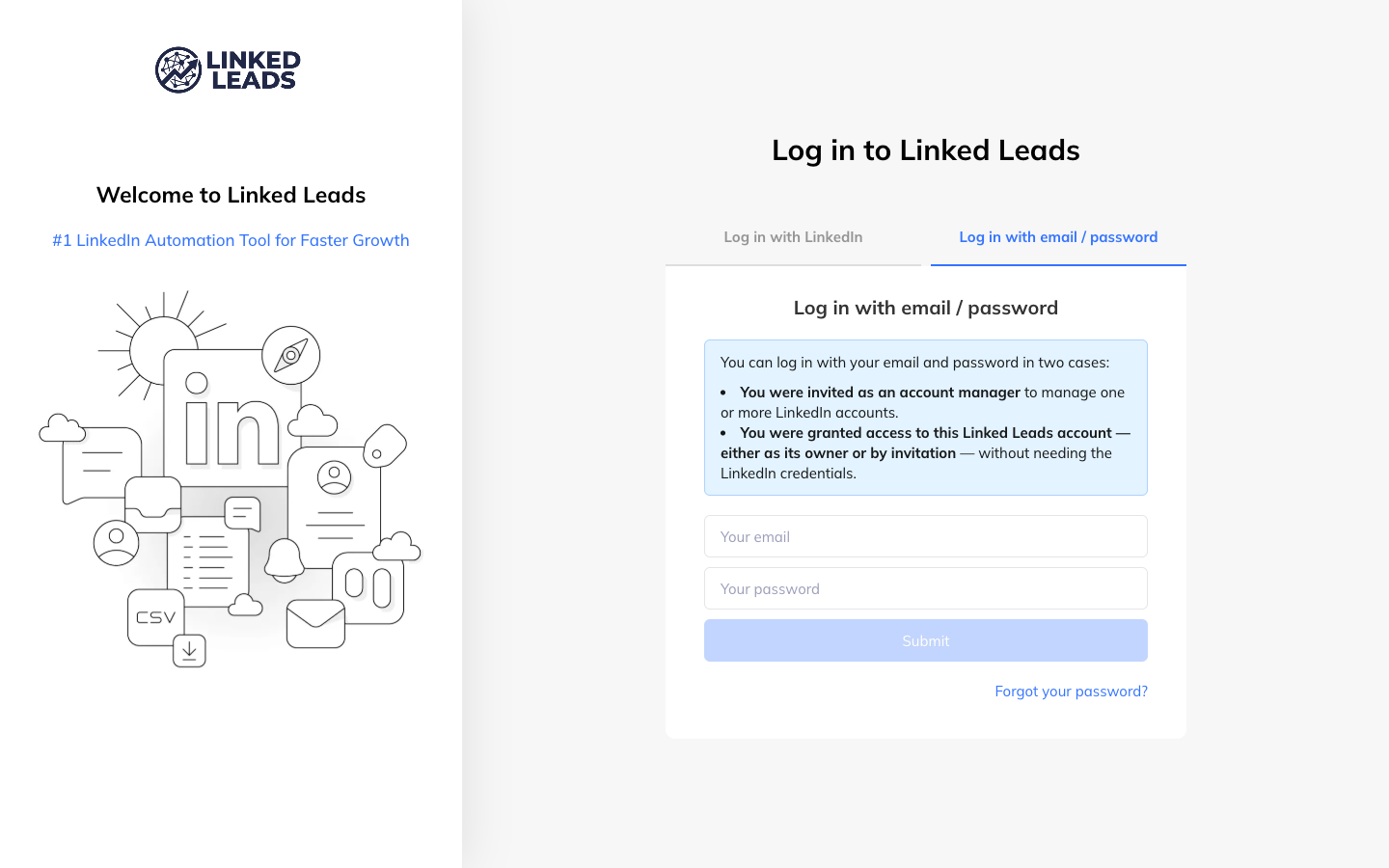
This route exists for two situations:
- You have been invited as an account manager on someone else's workspace
- You are the account owner and have turned this method on in order to delegate access
In both cases an email address and password are set during the invitation, and you sign in at app.linkedleadsapp.com/login without needing the extension at all.
If you forget your password
This applies to the email and password route only. There is no password on the LinkedIn route to forget.
- Click Forgot your password? beneath the sign-in fields.
- Enter the email address the invitation was sent to, and click Continue.
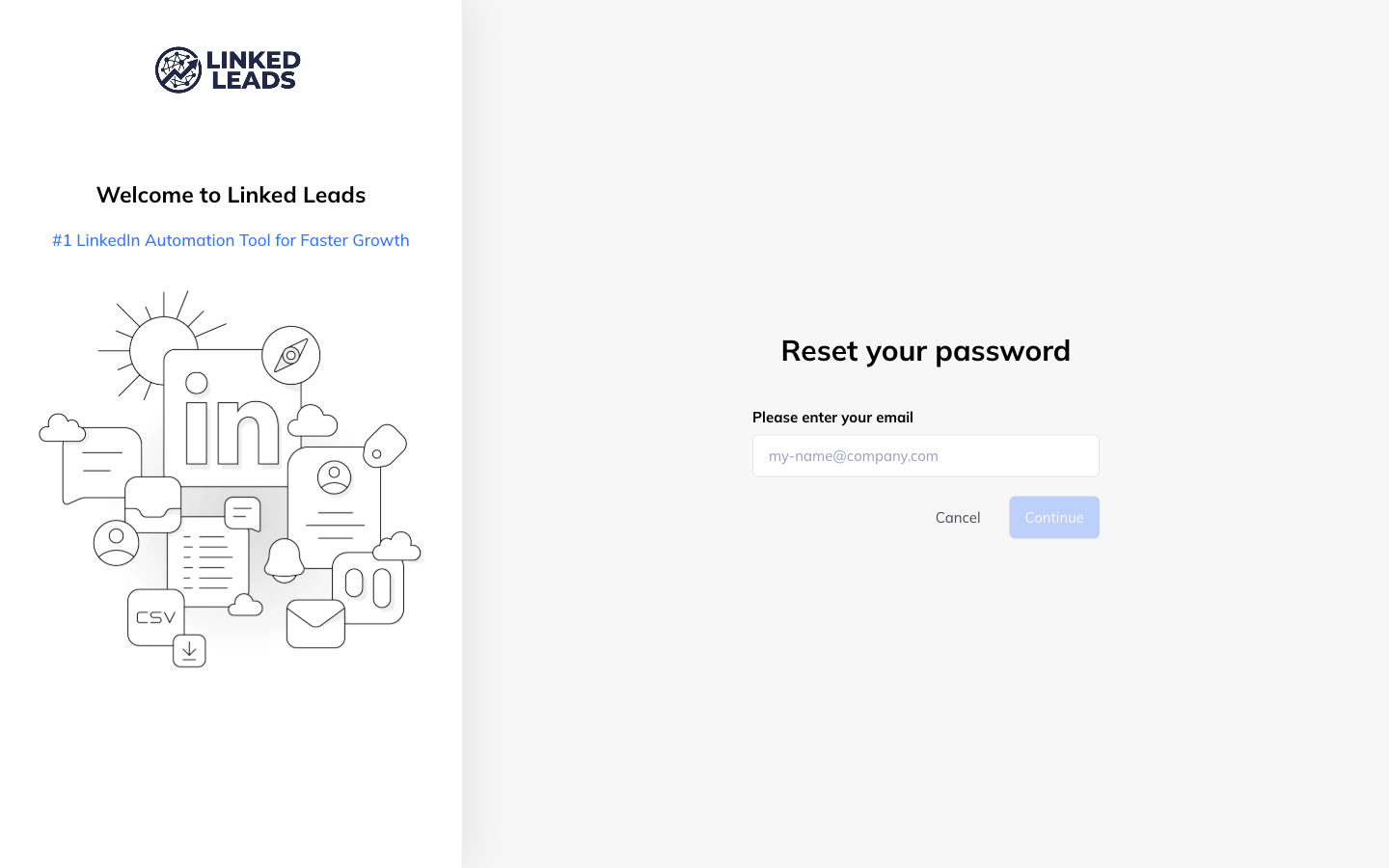
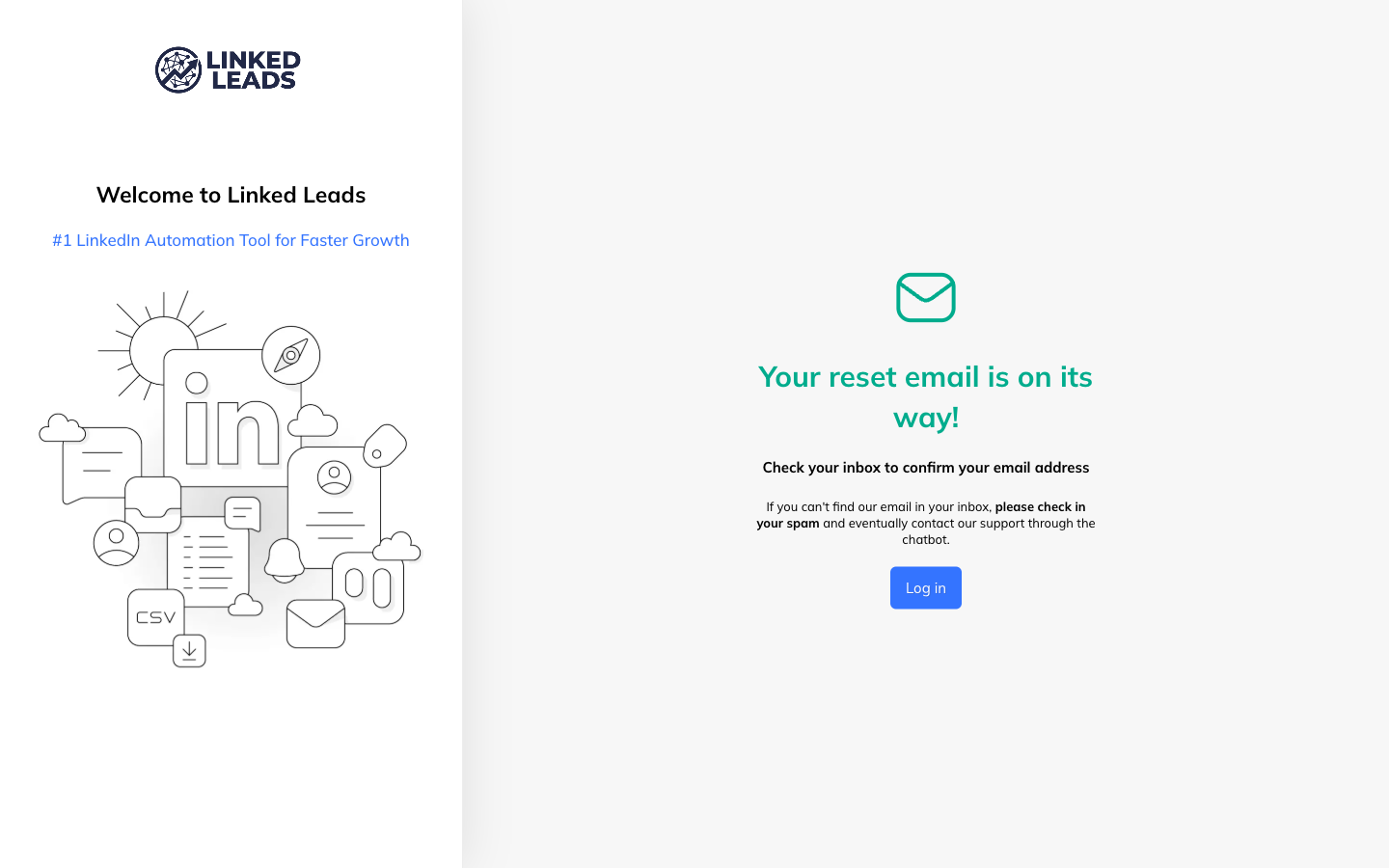
- A reset email is sent. If it does not arrive, check your spam folder.
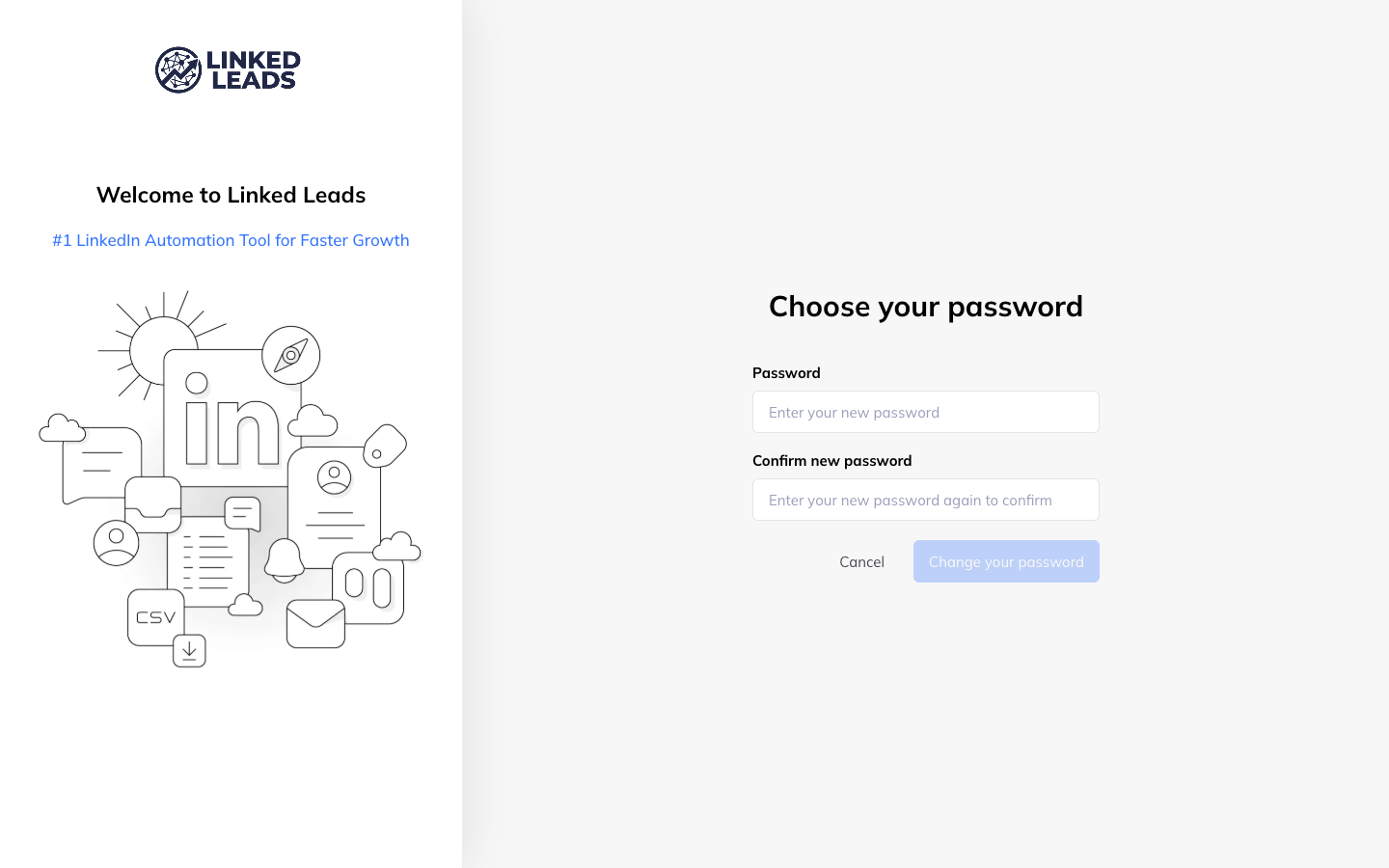
- Follow the link in the email and set a new password.
Which applies to you
| What you are doing | How you sign in | Extension needed |
|---|---|---|
| Working your own LinkedIn account | With LinkedIn, via the extension | Yes |
| Managing an account you were invited to | Email and password | No |